> ## Documentation Index
> Fetch the complete documentation index at: https://docs.autocalls.ai/llms.txt
> Use this file to discover all available pages before exploring further.
# Google Sheets Live Sync
> Learn how to sync leads from a live Google Sheet and trigger AI calls automatically
This tutorial shows how to set up an automation that monitors a Google Sheet for new leads and automatically triggers AI calls when new rows are added.
## What You'll Learn
* Creating an AI assistant optimized for Google Sheets integration
* Setting up Google Sheets trigger for new row additions
* Configuring proper data mapping from spreadsheet to assistant
* Testing and deploying your live sync automation
* Best practices for spreadsheet formatting
## Prerequisites
* Google account with Google Sheets access
* Phone number configured for outbound calls
* Basic understanding of spreadsheet structure
## Step 1: Create Your AI Assistant
We'll start by creating an AI assistant specifically configured for Google Sheets lead processing.
1. **Navigate to Assistants page** and click "Assistants" in the sidebar
2. **Click "New Assistant"** button
3. **Name your assistant** - we'll use "Test GoogleSheets"
4. **Complete the basic settings:**
* Select a phone number for outbound calls
* Choose an appropriate voice
* Set your timezone
## Step 2: Configure Call Variables for Spreadsheet Data
Call variables will map directly to columns in your Google Sheet, so plan your spreadsheet structure accordingly.
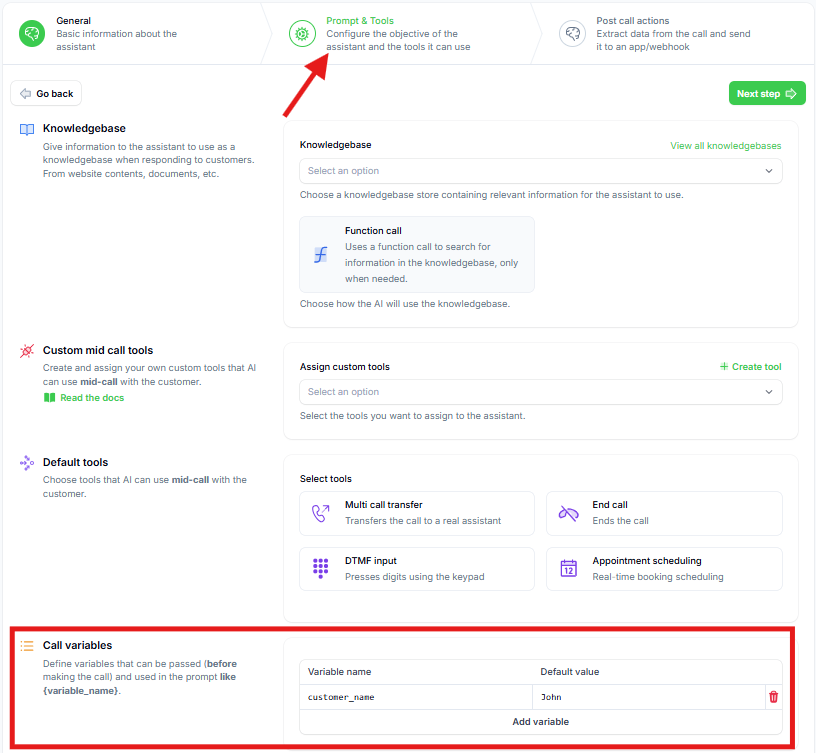
1. **Go to the "Prompts and Tools" tab** (second tab)
2. **Locate the "Call Variables" section**
3. **Configure your call variables:**
* You'll see `customer_name` with default value "John"
* **Add `email` variable** with your email as default value for testing
* Add any additional variables that match your spreadsheet columns
4. **Variables can be used in multiple ways:**
* **In the system prompt**: "Hi `{customer_name}`"
* **For mid-call tools**: Personalized API calls
* **For file imports**: Bulk lead processing
* **For automation platform**: Dynamic data mapping
## Step 3: Create Campaign for Sheet Leads
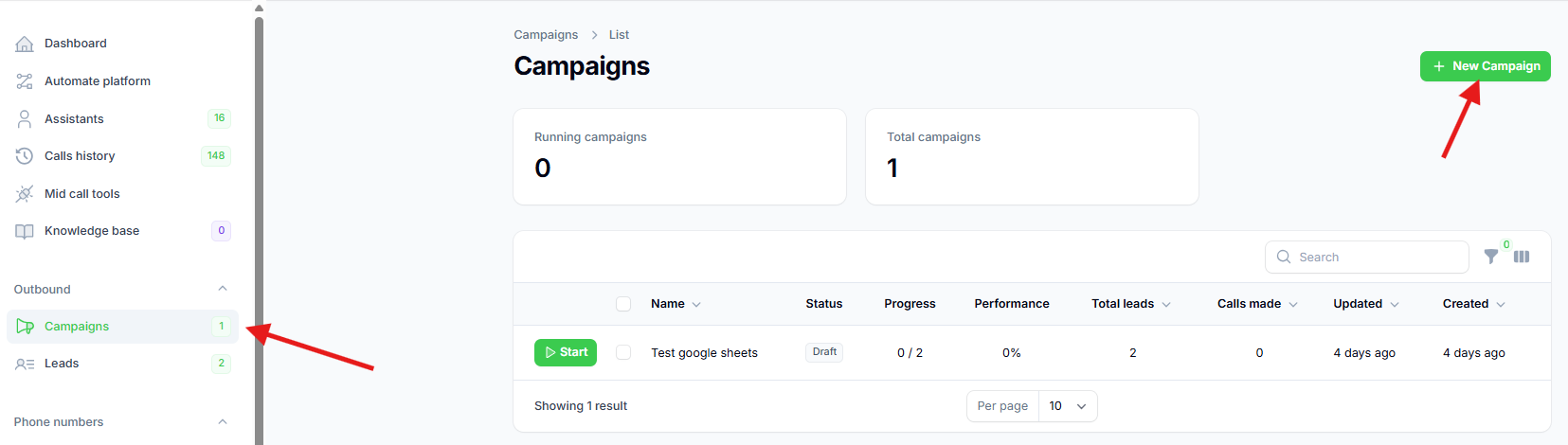
1. **Navigate to Campaigns** page in the sidebar
2. **Click "New Campaign"** button
3. **Configure your campaign:**
* **Give it a descriptive name**
* **Select the assistant** you just created
* **Keep default retry settings** (can be adjusted later)
4. **Click "Create"** to save the campaign
## Step 4: Set Up Google Sheets Automation
Now we'll create the automation that monitors your Google Sheet for new leads.
1. **Click "Automation Platform"** in the sidebar
2. **Create a new flow** from scratch
3. **Search for "Google Sheets"** in the trigger search
4. **Select "New Row Added"** trigger
5. **Create a new connection:**
* Click "New Connection"
* Authorize with your Google account
* Click "Save" once connected
## Step 5: Create and Configure Your Test Spreadsheet and add sample data
For this tutorial, we'll create a properly formatted test spreadsheet.
1. **Go to Google Sheets** and create a new spreadsheet
2. **Name it "testnewleads"** (or any descriptive name)
3. **Add a test lead in the first row:**
* **Phone number**: Use international format (+1234567890)
* **Customer name**: Your name for testing
* **Email**: Your email address
**Phone Number Format**: Always use international format with + sign and no spaces or parentheses. Example: +1234567890, not (123) 456-7890
2. **Save the spreadsheet** - this data will be used for testing
## Step 7: Configure the Automation Trigger
1. **Return to the automation platform**
2. **Select your spreadsheet** ("testnewleads")
3. **Select the specific sheet** (usually "Sheet1")
4. **Click "Load Data"** to fetch the sample lead
5. **Verify** that you can see the lead data you just created
## Step 8: Configure the Campaign Action
1. **Click the "+" sign** to add an action
2. **Search for your calling platform**
3. **Select "Add Lead to Campaign"**
4. **Select the campaign** you created for this automation
## Step 9: Map Spreadsheet Data to Assistant Variables
This step connects your spreadsheet columns to your assistant's call variables.
1. **Click on the "Phone Number" input field**
2. **A sidebar will open** showing available data from the trigger
3. **Search for and select the phone number** from your spreadsheet
4. **Click "Insert"** to map the field
5. **Map your call variables:**
* **customer\_name**: Select from spreadsheet data
* **email**: Select from spreadsheet data
* Map any additional variables you defined
The variable names in your assistant must match the data you're mapping. If you have more columns in your spreadsheet, make sure to define corresponding variables in your assistant first. Learn more about [configuring call variables](/ai-assistants/settings/prompt-and-tools#call-variables).
## Step 10: Test the Integration
1. **Click "Test Step"** to verify the lead creation
2. **Check for success confirmation**
3. **Navigate to your Leads page** to confirm:
* The lead appears in your platform
* All variables are correctly populated
* Data matches your spreadsheet entry
## Step 11: Publish and Monitor
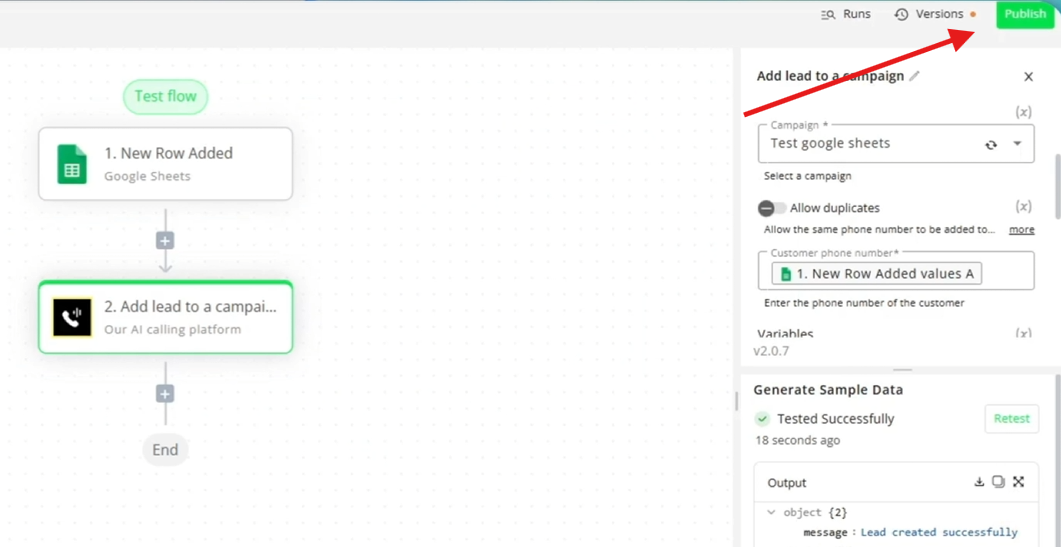
1. **Click "Publish"** to activate your automation
2. **Your spreadsheet is now being monitored** for new rows
3. **Test the live sync:**
* Add new leads to your spreadsheet
* Check that they automatically appear in your platform
* Monitor the automation runs for any issues
4. **Monitor automation performance:**
* Click "Runs" button in your automation
* Review each execution for success/failure
* Check timing and data accuracy
## Best Practices
### Spreadsheet Management
* **Maintain consistent data format** across all entries
* **Keep phone numbers in international format** consistently
* **Avoid empty rows** between data entries
## Advanced Features
### Multiple Variable Support
If your business needs more lead data:
1. **Add columns** to your spreadsheet (company\_name, address, etc.)
2. **Define corresponding variables** in your assistant
3. **Map the new fields** in your automation
4. **Test with sample data** before adding real leads
## Troubleshooting
### Common Issues
**Leads not syncing:**
* Check Google Sheets connection authorization
* Verify spreadsheet permissions and sharing settings
* Ensure new rows contain data in all mapped columns
**Phone number format errors:**
* Use international format: +1234567890
* Remove spaces, parentheses, and dashes
* Verify country code is included
**Variable mapping issues:**
* Confirm variable names match between assistant and spreadsheet
* Check that columns contain data
* Verify mapping configuration in automation
**Automation not triggering:**
* Ensure automation is published and active
* Check that new rows are actually being added
* Verify Google Sheets trigger is properly configured
## Next Steps
Once your Google Sheets integration is working:
* **Scale up** with larger lead lists
* **Add more variables** for better personalization
* **Integrate with other tools** like CRM systems
* **Set up follow-up automations** for call results
* **Monitor and optimize** your conversion rates
Your Google Sheet is now a powerful lead management tool that automatically triggers AI calls for every new lead you add!
 1. **Navigate to Assistants page** and click "Assistants" in the sidebar
2. **Click "New Assistant"** button
3. **Name your assistant** - we'll use "Test GoogleSheets"
4. **Complete the basic settings:**
* Select a phone number for outbound calls
* Choose an appropriate voice
* Set your timezone
## Step 2: Configure Call Variables for Spreadsheet Data
Call variables will map directly to columns in your Google Sheet, so plan your spreadsheet structure accordingly.
1. **Navigate to Assistants page** and click "Assistants" in the sidebar
2. **Click "New Assistant"** button
3. **Name your assistant** - we'll use "Test GoogleSheets"
4. **Complete the basic settings:**
* Select a phone number for outbound calls
* Choose an appropriate voice
* Set your timezone
## Step 2: Configure Call Variables for Spreadsheet Data
Call variables will map directly to columns in your Google Sheet, so plan your spreadsheet structure accordingly.
 1. **Go to the "Prompts and Tools" tab** (second tab)
2. **Locate the "Call Variables" section**
3. **Configure your call variables:**
* You'll see `customer_name` with default value "John"
* **Add `email` variable** with your email as default value for testing
* Add any additional variables that match your spreadsheet columns
4. **Variables can be used in multiple ways:**
* **In the system prompt**: "Hi `{customer_name}`"
* **For mid-call tools**: Personalized API calls
* **For file imports**: Bulk lead processing
* **For automation platform**: Dynamic data mapping
## Step 3: Create Campaign for Sheet Leads
1. **Go to the "Prompts and Tools" tab** (second tab)
2. **Locate the "Call Variables" section**
3. **Configure your call variables:**
* You'll see `customer_name` with default value "John"
* **Add `email` variable** with your email as default value for testing
* Add any additional variables that match your spreadsheet columns
4. **Variables can be used in multiple ways:**
* **In the system prompt**: "Hi `{customer_name}`"
* **For mid-call tools**: Personalized API calls
* **For file imports**: Bulk lead processing
* **For automation platform**: Dynamic data mapping
## Step 3: Create Campaign for Sheet Leads
 1. **Navigate to Campaigns** page in the sidebar
2. **Click "New Campaign"** button
3. **Configure your campaign:**
* **Give it a descriptive name**
* **Select the assistant** you just created
* **Keep default retry settings** (can be adjusted later)
4. **Click "Create"** to save the campaign
## Step 4: Set Up Google Sheets Automation
Now we'll create the automation that monitors your Google Sheet for new leads.
1. **Click "Automation Platform"** in the sidebar
2. **Create a new flow** from scratch
3. **Search for "Google Sheets"** in the trigger search
4. **Select "New Row Added"** trigger
5. **Create a new connection:**
* Click "New Connection"
* Authorize with your Google account
* Click "Save" once connected
## Step 5: Create and Configure Your Test Spreadsheet and add sample data
For this tutorial, we'll create a properly formatted test spreadsheet.
1. **Go to Google Sheets** and create a new spreadsheet
2. **Name it "testnewleads"** (or any descriptive name)
3. **Add a test lead in the first row:**
* **Phone number**: Use international format (+1234567890)
* **Customer name**: Your name for testing
* **Email**: Your email address
1. **Navigate to Campaigns** page in the sidebar
2. **Click "New Campaign"** button
3. **Configure your campaign:**
* **Give it a descriptive name**
* **Select the assistant** you just created
* **Keep default retry settings** (can be adjusted later)
4. **Click "Create"** to save the campaign
## Step 4: Set Up Google Sheets Automation
Now we'll create the automation that monitors your Google Sheet for new leads.
1. **Click "Automation Platform"** in the sidebar
2. **Create a new flow** from scratch
3. **Search for "Google Sheets"** in the trigger search
4. **Select "New Row Added"** trigger
5. **Create a new connection:**
* Click "New Connection"
* Authorize with your Google account
* Click "Save" once connected
## Step 5: Create and Configure Your Test Spreadsheet and add sample data
For this tutorial, we'll create a properly formatted test spreadsheet.
1. **Go to Google Sheets** and create a new spreadsheet
2. **Name it "testnewleads"** (or any descriptive name)
3. **Add a test lead in the first row:**
* **Phone number**: Use international format (+1234567890)
* **Customer name**: Your name for testing
* **Email**: Your email address
 1. **Click "Publish"** to activate your automation
2. **Your spreadsheet is now being monitored** for new rows
3. **Test the live sync:**
* Add new leads to your spreadsheet
* Check that they automatically appear in your platform
* Monitor the automation runs for any issues
4. **Monitor automation performance:**
* Click "Runs" button in your automation
* Review each execution for success/failure
* Check timing and data accuracy
## Best Practices
### Spreadsheet Management
* **Maintain consistent data format** across all entries
* **Keep phone numbers in international format** consistently
* **Avoid empty rows** between data entries
## Advanced Features
### Multiple Variable Support
If your business needs more lead data:
1. **Add columns** to your spreadsheet (company\_name, address, etc.)
2. **Define corresponding variables** in your assistant
3. **Map the new fields** in your automation
4. **Test with sample data** before adding real leads
## Troubleshooting
### Common Issues
**Leads not syncing:**
* Check Google Sheets connection authorization
* Verify spreadsheet permissions and sharing settings
* Ensure new rows contain data in all mapped columns
**Phone number format errors:**
* Use international format: +1234567890
* Remove spaces, parentheses, and dashes
* Verify country code is included
**Variable mapping issues:**
* Confirm variable names match between assistant and spreadsheet
* Check that columns contain data
* Verify mapping configuration in automation
**Automation not triggering:**
* Ensure automation is published and active
* Check that new rows are actually being added
* Verify Google Sheets trigger is properly configured
## Next Steps
Once your Google Sheets integration is working:
* **Scale up** with larger lead lists
* **Add more variables** for better personalization
* **Integrate with other tools** like CRM systems
* **Set up follow-up automations** for call results
* **Monitor and optimize** your conversion rates
Your Google Sheet is now a powerful lead management tool that automatically triggers AI calls for every new lead you add!
1. **Click "Publish"** to activate your automation
2. **Your spreadsheet is now being monitored** for new rows
3. **Test the live sync:**
* Add new leads to your spreadsheet
* Check that they automatically appear in your platform
* Monitor the automation runs for any issues
4. **Monitor automation performance:**
* Click "Runs" button in your automation
* Review each execution for success/failure
* Check timing and data accuracy
## Best Practices
### Spreadsheet Management
* **Maintain consistent data format** across all entries
* **Keep phone numbers in international format** consistently
* **Avoid empty rows** between data entries
## Advanced Features
### Multiple Variable Support
If your business needs more lead data:
1. **Add columns** to your spreadsheet (company\_name, address, etc.)
2. **Define corresponding variables** in your assistant
3. **Map the new fields** in your automation
4. **Test with sample data** before adding real leads
## Troubleshooting
### Common Issues
**Leads not syncing:**
* Check Google Sheets connection authorization
* Verify spreadsheet permissions and sharing settings
* Ensure new rows contain data in all mapped columns
**Phone number format errors:**
* Use international format: +1234567890
* Remove spaces, parentheses, and dashes
* Verify country code is included
**Variable mapping issues:**
* Confirm variable names match between assistant and spreadsheet
* Check that columns contain data
* Verify mapping configuration in automation
**Automation not triggering:**
* Ensure automation is published and active
* Check that new rows are actually being added
* Verify Google Sheets trigger is properly configured
## Next Steps
Once your Google Sheets integration is working:
* **Scale up** with larger lead lists
* **Add more variables** for better personalization
* **Integrate with other tools** like CRM systems
* **Set up follow-up automations** for call results
* **Monitor and optimize** your conversion rates
Your Google Sheet is now a powerful lead management tool that automatically triggers AI calls for every new lead you add!