

Overview
User limits provide granular control over individual users on your white label platform. You can override plan limits for specific users, giving them more or less access than their plan normally allows.Accessing User Settings
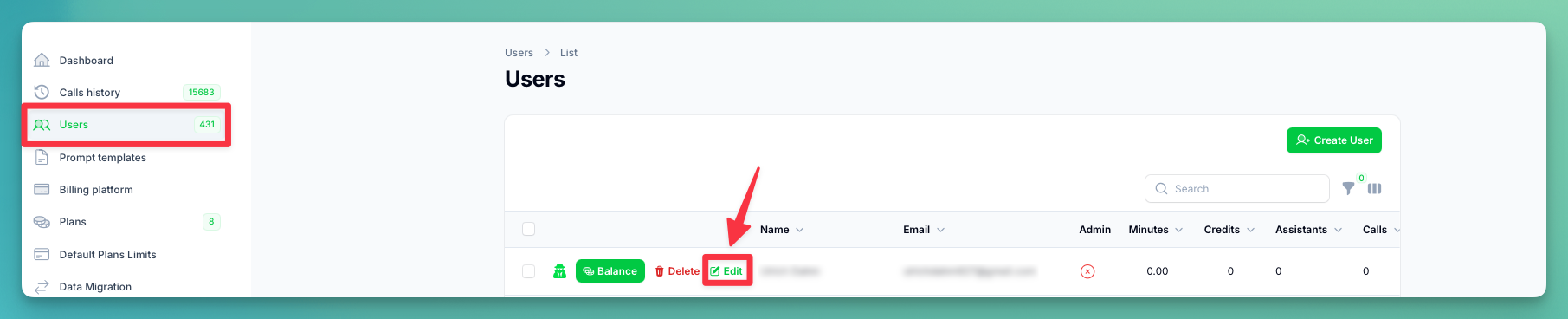
- Go to the Users table in your administration panel
- Click the Edit button on any user row to open their profile
User Information & Access
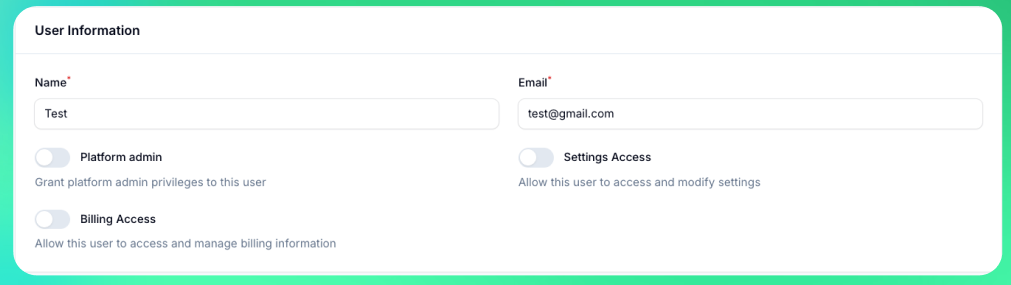
- Name — User’s display name
- Email — User’s email address (used for login and notifications)
- Platform Admin — Full administrative access to the administration panel. Can manage users, configure all settings, and access all resources. Use for trusted administrators who need complete control.
- Settings Access — Can access and modify the administration panel settings page (branding, appearance, email templates, etc.) but cannot manage other users. Use for team members who need to configure the platform without user management.
- Billing Access — Can access the billing dashboard, manage payment methods, view invoices, and update billing information. Use for finance team members or accounting staff.
These permissions only apply to tenant users. The tenant owner always has full access by default.
Custom User Limits
Enable “Custom Limits” to override plan defaults for this specific user.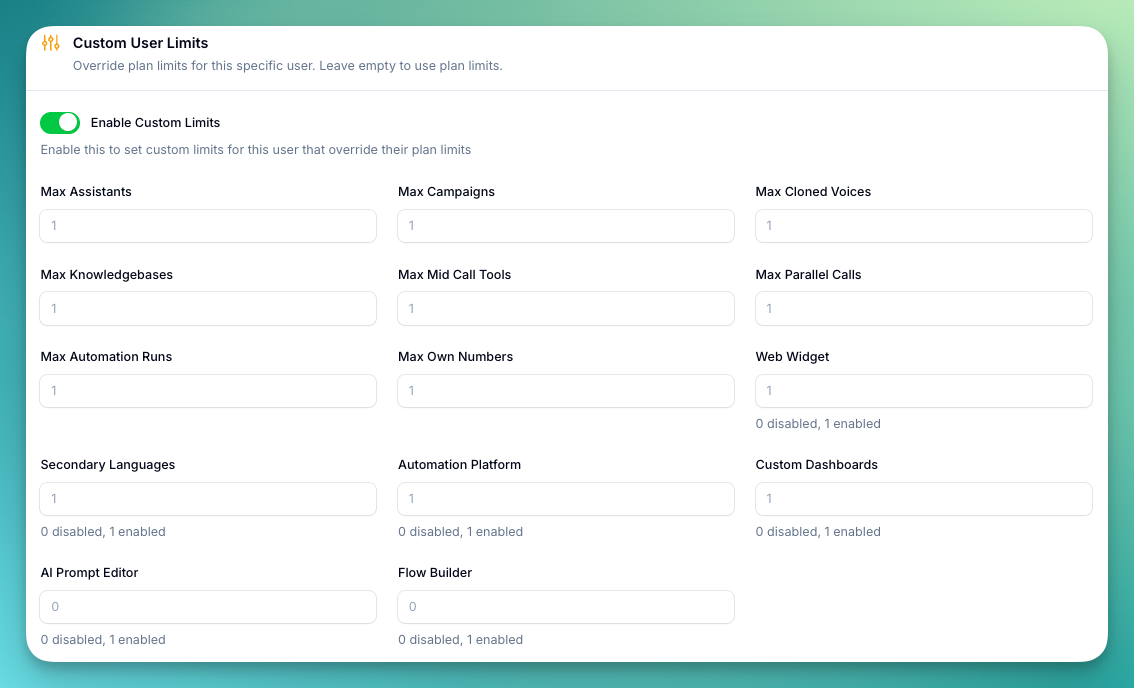
Count Limits
Numerical restrictions on resource usage. Set -1 for unlimited, 0 for disabled, or a positive number for a specific limit.Boolean Limits
Custom User Appearance
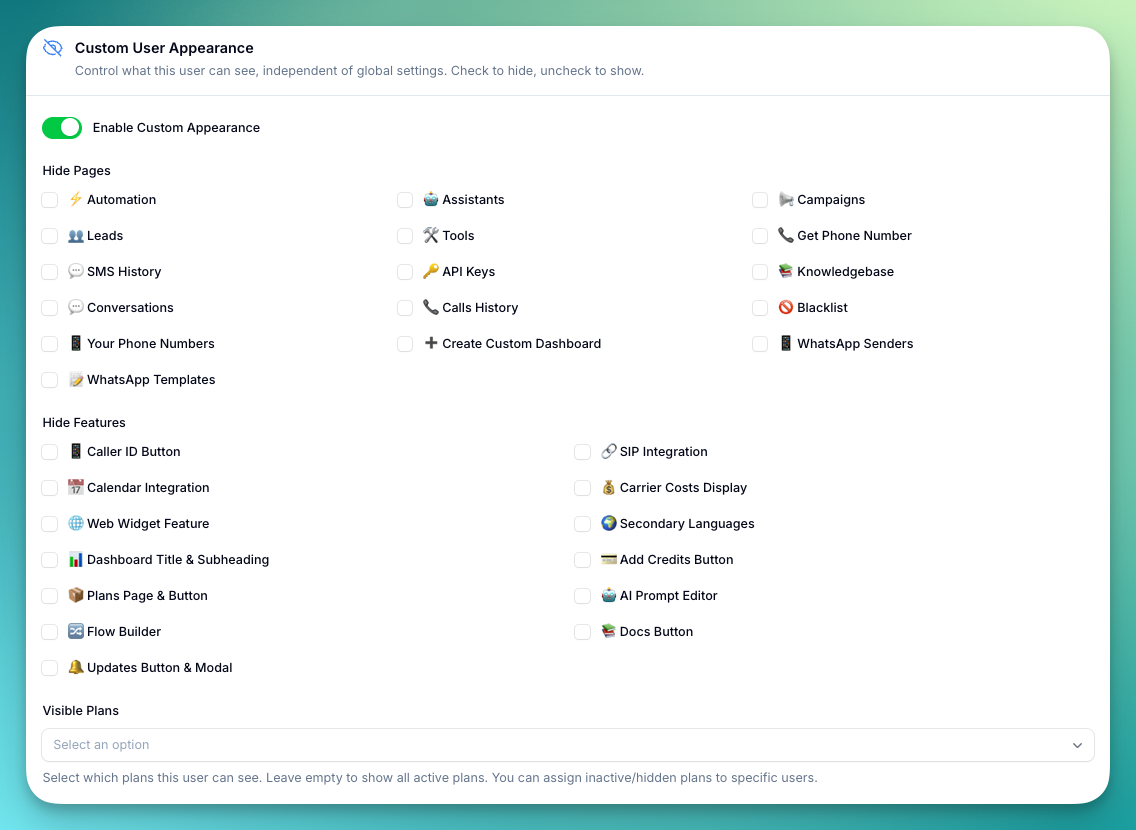
Hide Pages
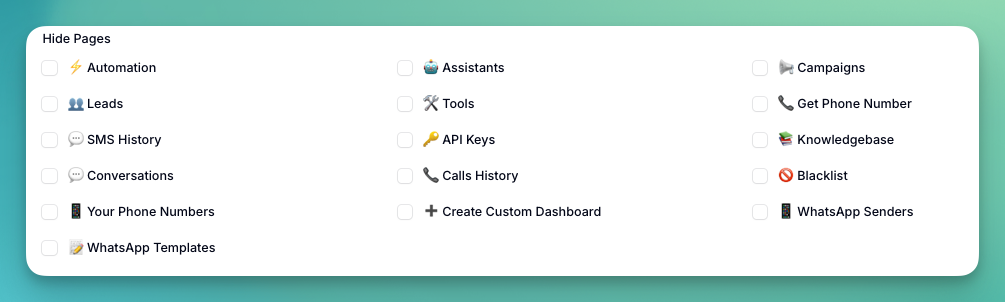
- Automation, Assistants, Campaigns, Leads, Tools
- Get Phone Number, SMS History, API Keys
- Knowledgebase, Conversations, Calls History
- Blacklist, Your Phone Numbers, Create Custom Dashboard
- WhatsApp Senders, WhatsApp Templates
Hide Features
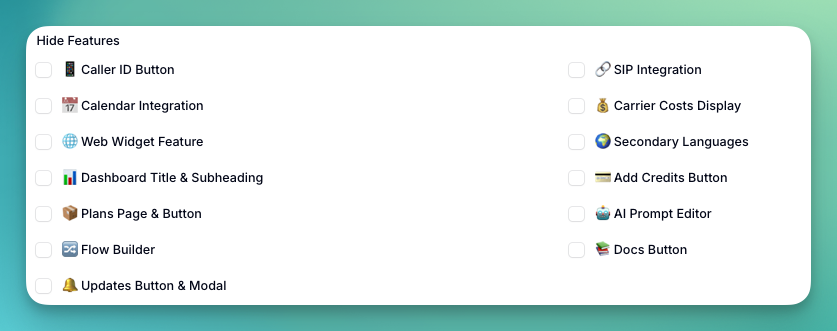
- Caller ID Button, SIP Integration
- Calendar Integration, Carrier Costs Display
- Web Widget, Secondary Languages, Dashboard Title & Subheading
- Add Credits Button, Plans Page & Button
- AI Prompt Editor, Flow Builder
- Docs Button, Updates Button & Modal
Visible Plans
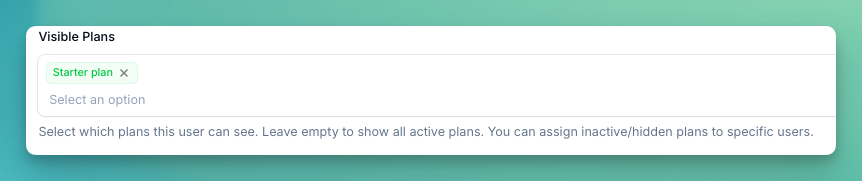
User appearance settings override global settings. If no custom setting exists for a feature, the global configuration applies.
Manage Balance
Click the Balance button on any user row to open the balance management modal. This shows the current balances and lets you transfer minutes or credits.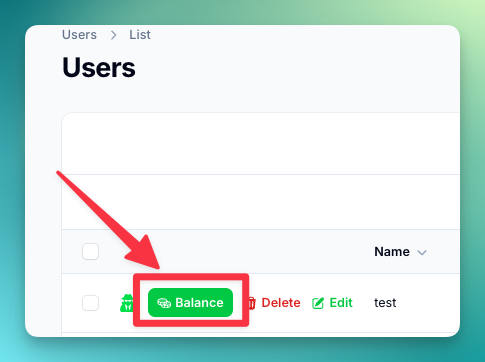
Transfer Call Minutes
Transfer call minutes between your balance and a user’s balance.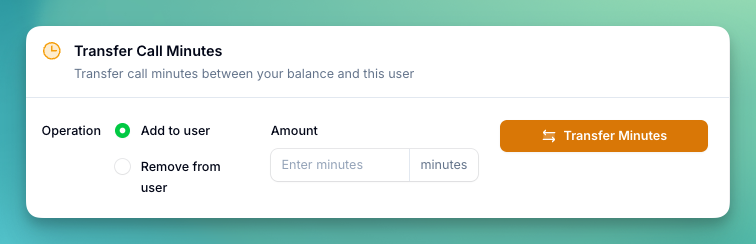
- Choose Add to user or Remove from user
- Enter the amount in minutes
- The maximum you can transfer is limited by the source balance
Transfer Chat Credits
Transfer chat credits used for AI replies, WhatsApp messages, and SMS. Credits are deducted from your minutes balance at a rate of 9 credits = 1 minute.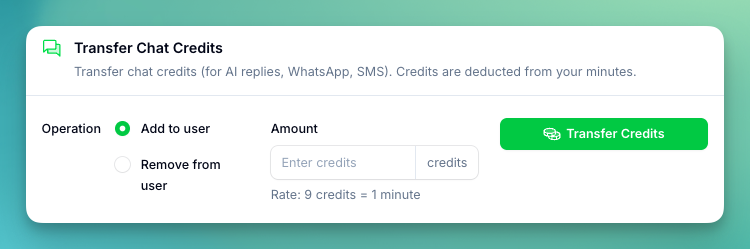
- Choose Add to user or Remove from user
- Enter the amount in credits
- When adding credits, the equivalent minutes are deducted from your balance
- When removing credits, the equivalent minutes are returned to your balance
Troubleshooting
User can’t create resources:- Check current vs. limit usage
- Verify limit type (count vs. boolean)
- Confirm user is on correct plan
- Clear platform cache
- Verify limit configuration
- Check for conflicting settings
User limits override plan limits. A user’s effective limit is always the user limit if set, otherwise the plan limit applies.