

The customer pages of these docs call it Auto, its name on the main platform. On your domain it carries the name you choose. See Auto: build by chatting for what your customers can do with it.
What your customers get
- A chat on every page. A button at the bottom of every page, an item in the menu and a full page. See Using the chat.
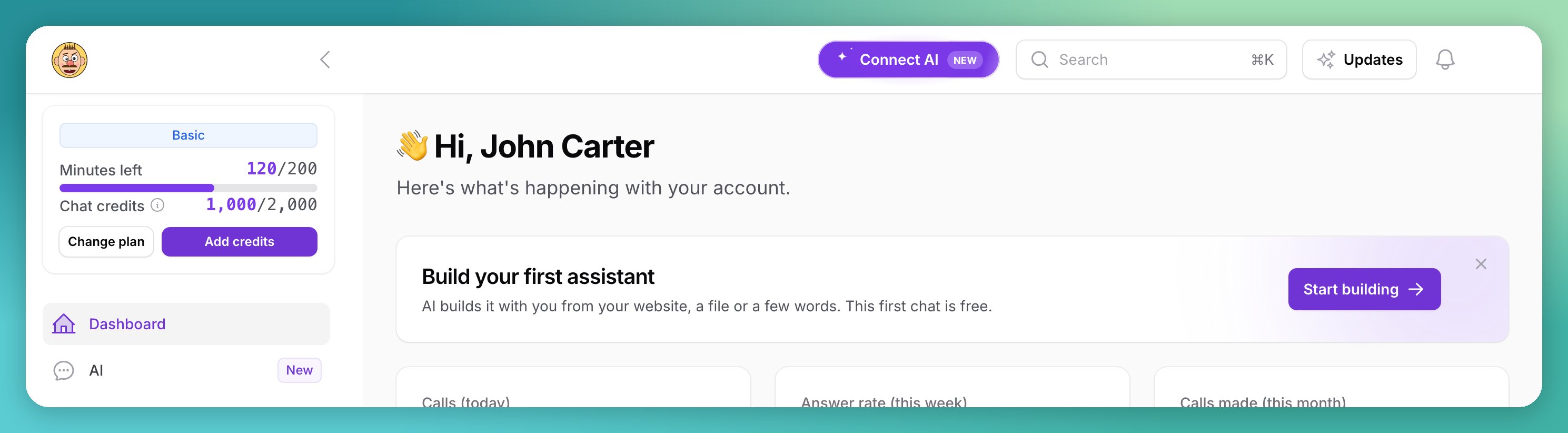
- A free first assistant. New customers see a Build your first assistant card on their dashboard. That first chat is free. See Your first assistant.
- Help with the whole setup. Assistants, knowledge, booking, lookups during the call, messages after the call, WhatsApp and SMS, campaigns, numbers and reading calls to fix what went wrong.
- Nothing changes without their approval. Every change waits on a card. The customer clicks it, or nothing happens.
- Your brand only. Your name for it, your color and your domain. Your customers never see the platform’s name.
Turn it on
The AI Builder is off for your platform until you turn it on.1
Open the AI Builder settings
In your Administration Panel, open Settings, then AI Builder.
2
Turn it on
Switch on Turn on AI Builder and click Save. You get it right away.
3
Try it yourself first
Click Back to app. The chat is in your menu and at the bottom of every page. Ask it something about your account, or build a test assistant.
4
Give it to your customers
Turn on AI Builder on the plans that should include it. See Who gets it and how many messages.
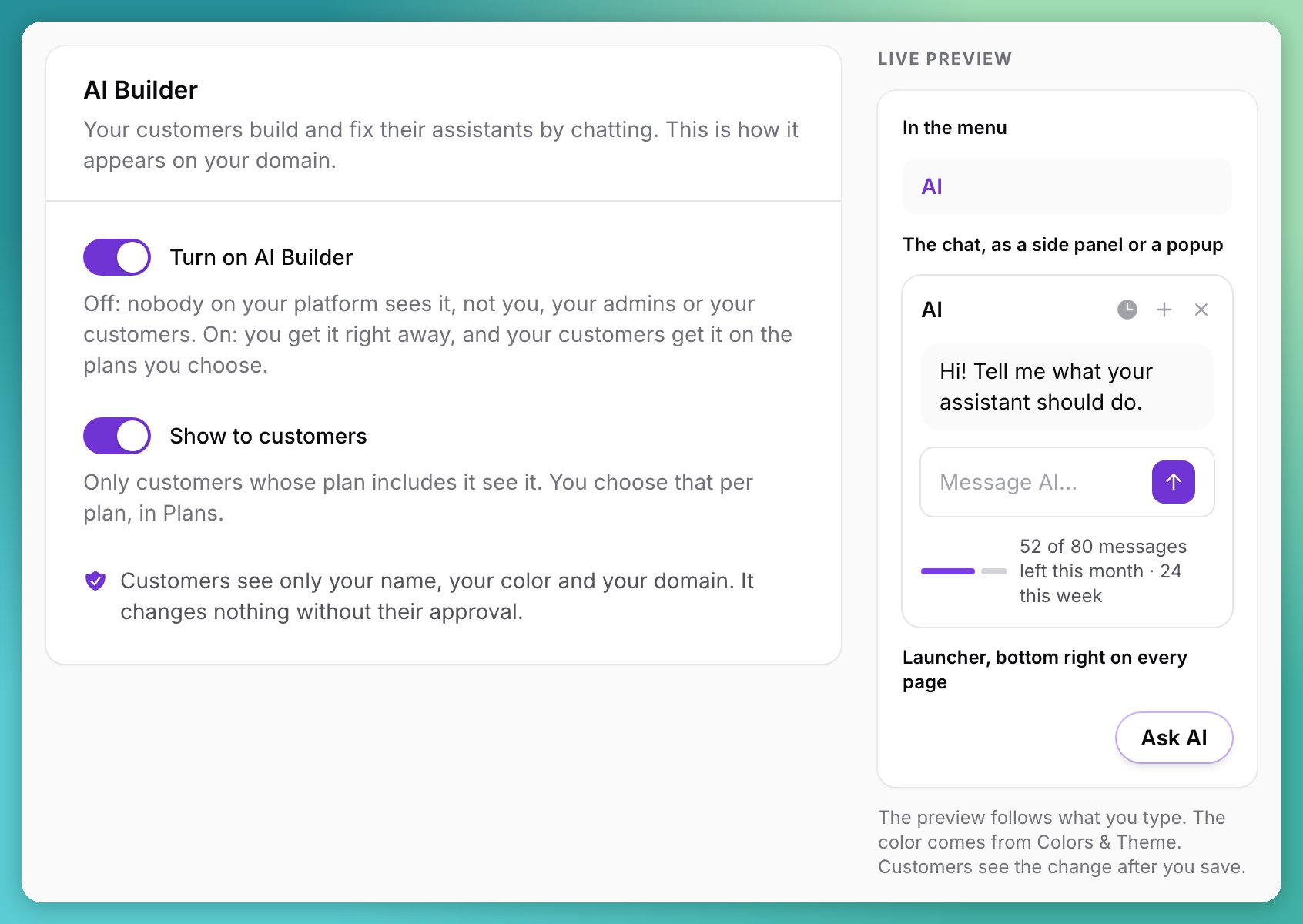
- Turn on AI Builder: off means nobody on your platform sees it, not you, your team or your customers.
- Show to customers: off hides it from your customers. Only customers whose plan includes it see it.
Make it yours
Everything below is on the same page. The Live preview on the right follows what you type. Your customers see the change after you click Save.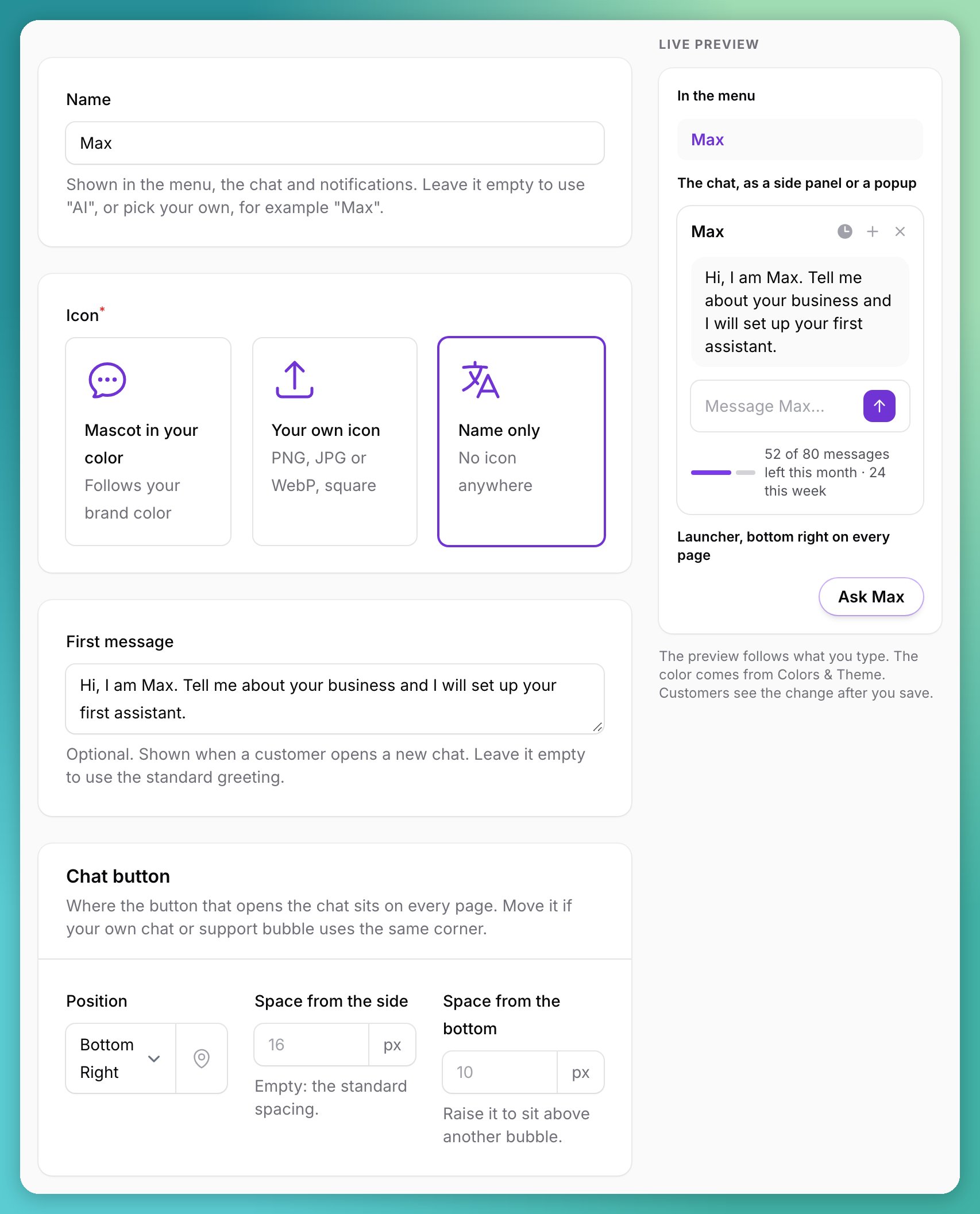
The color comes from Settings → Colors & Theme. Your customers use the chat on your domain only.
Which areas your customers see
The section What [name] can do for your customers lists the twelve areas of the chat, each one On, Partly or Off.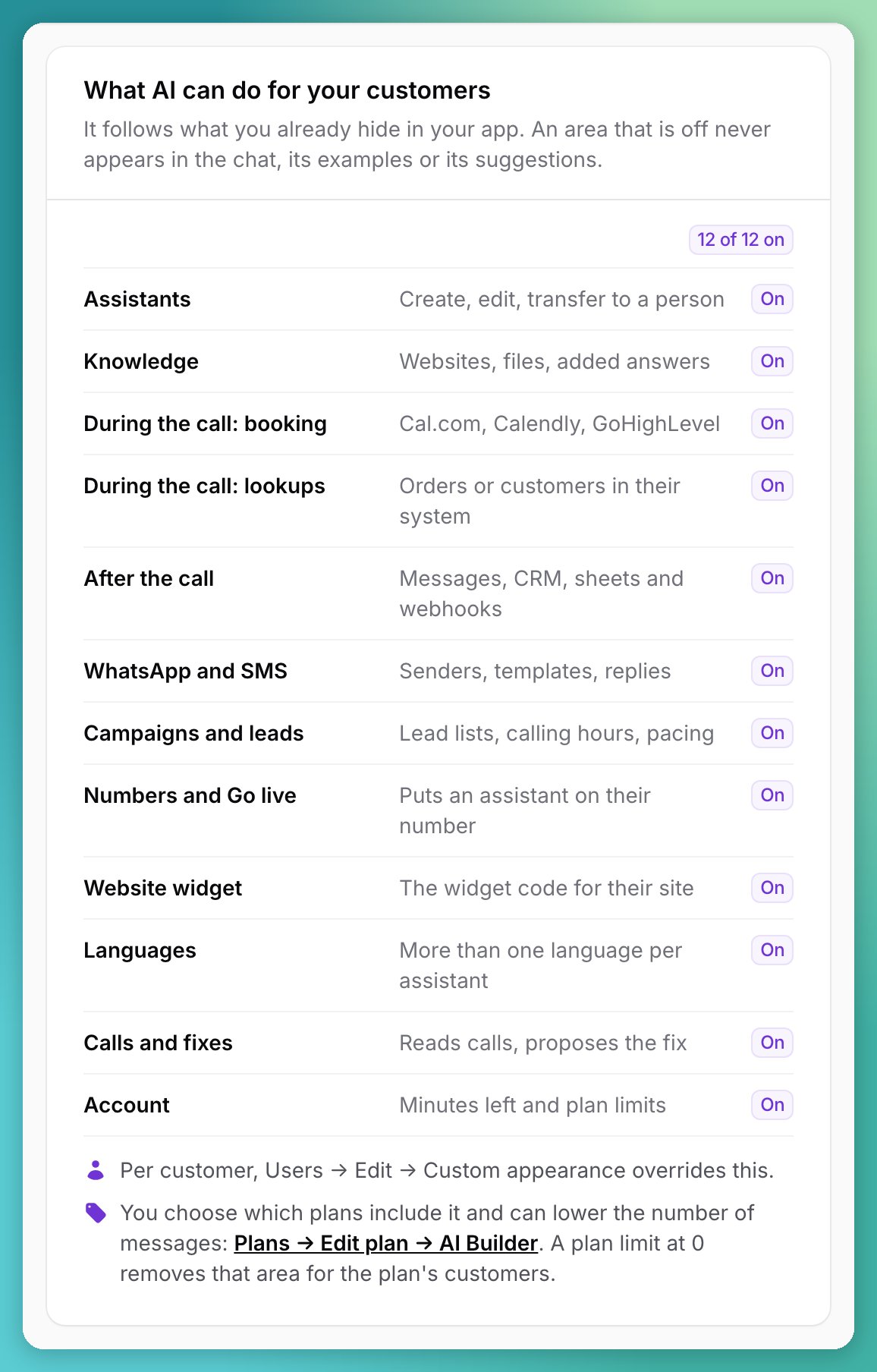
The list is read-only. It follows what you already hide in your app, so there is nothing new to keep in sync. To change what your customers get:
- For everyone: hide a page or feature in Settings → Custom Appearance. The area in the list turns Off or Partly, and its line says which switch hides it.
- For one customer: use Users → Edit → Custom User Appearance. See User limits.
- For one plan: a plan limit at 0, or a feature switch that is off (for example Automation Platform), removes that area for the plan’s customers.
Who gets it and how many messages
Customers use messages. Each message they send counts as one; large attached text counts as more. Your customers see what is left under the chat box, for the month and for the week. See Messages and limits for what they see.On a plan
Open Plans, edit a plan and scroll to Plan Limits.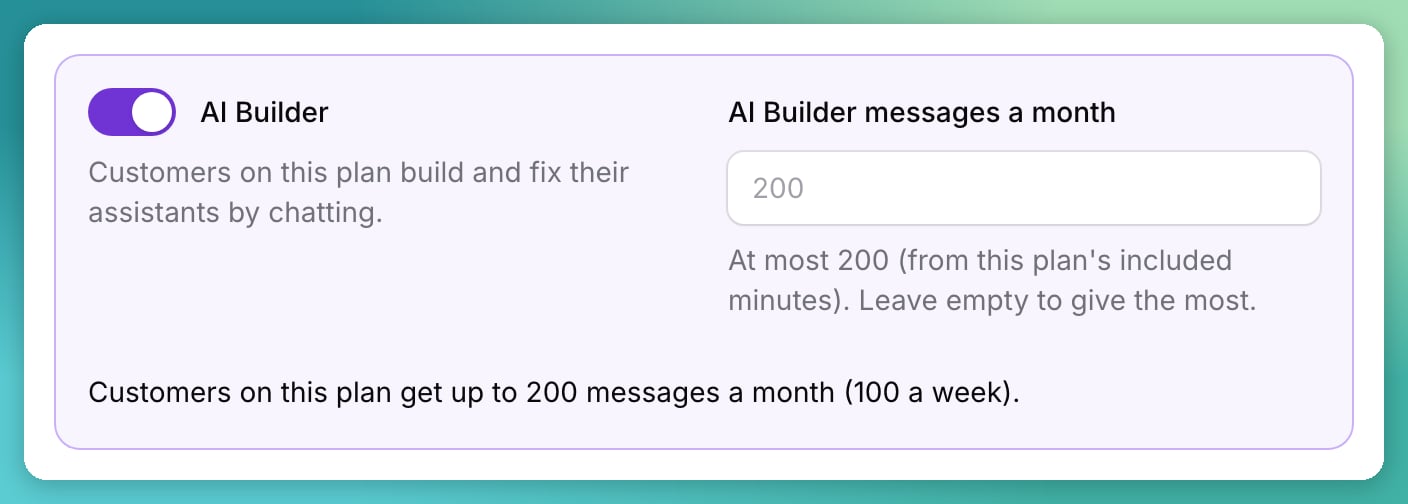
- AI Builder: customers on this plan build and fix their assistants by chatting. Off by default.
- AI Builder messages a month: leave it empty to give the most. The most comes from the plan’s included minutes, and the field shows it. You can set a lower number, never a higher one, and never unlimited (-1).
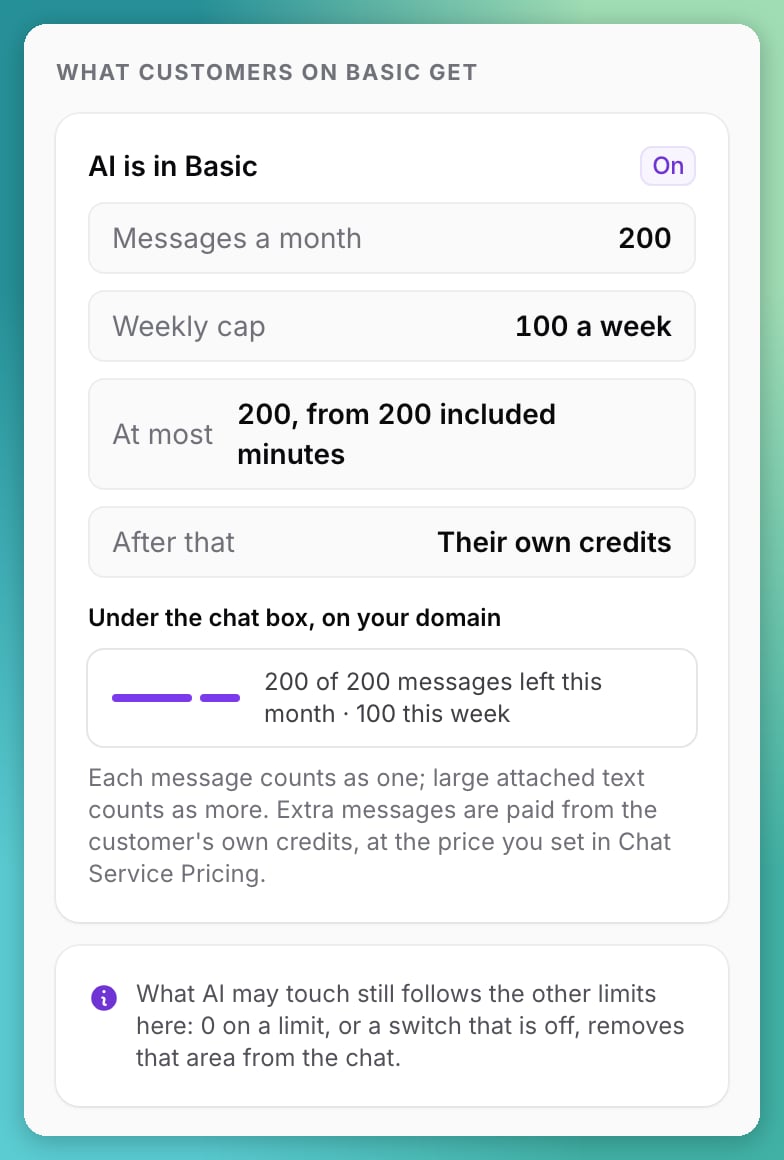
For one customer
Open Users, click Edit on the customer and switch on Enable Custom Limits under Custom User Limits.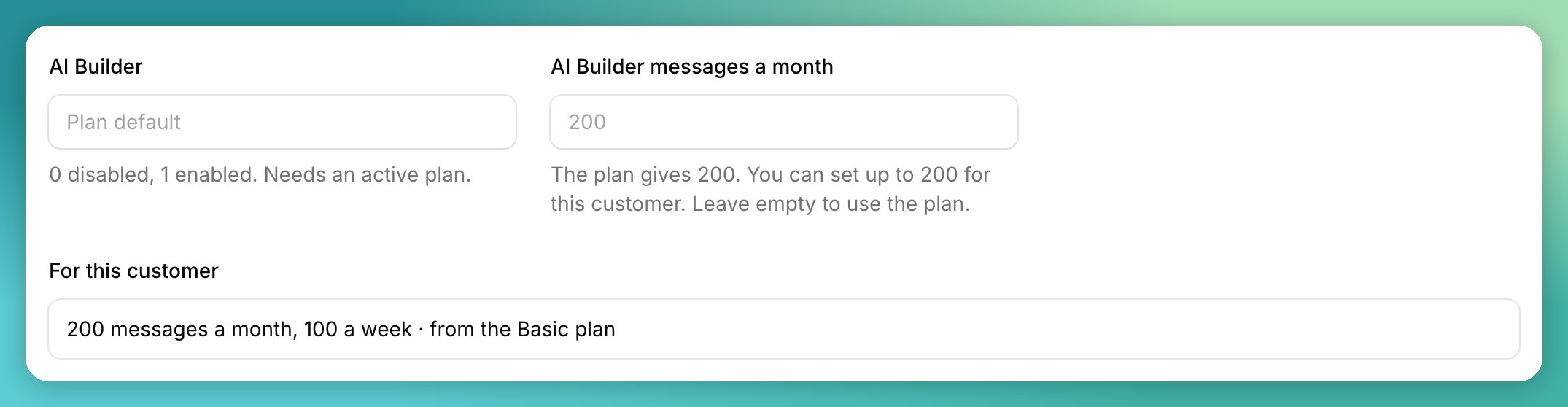
- AI Builder: 1 gives it to this customer even when their plan doesn’t include it, 0 turns it off for them. Empty follows the plan. The customer still needs an active plan.
- AI Builder messages a month: a number for this customer only, up to what their plan’s included minutes give. It can be higher than the lower number you set on the plan.
- For this customer shows what the customer gets once you save.
You and your team
- You, the owner, get the AI Builder as soon as it is on, on your own plan. You don’t need the plan switch, and you get more messages than a customer. Your counter under the chat box shows how many are left.
- Your team members who can open your Administration Panel (Platform admin, Settings Access or Billing Access) get it while it is on for you, with the same number of messages as you.
Extra messages and your price
When a customer has used the month’s messages, the chat can offer to continue with their own credits. You set the price in Chat Service Pricing, under AI Builder messages.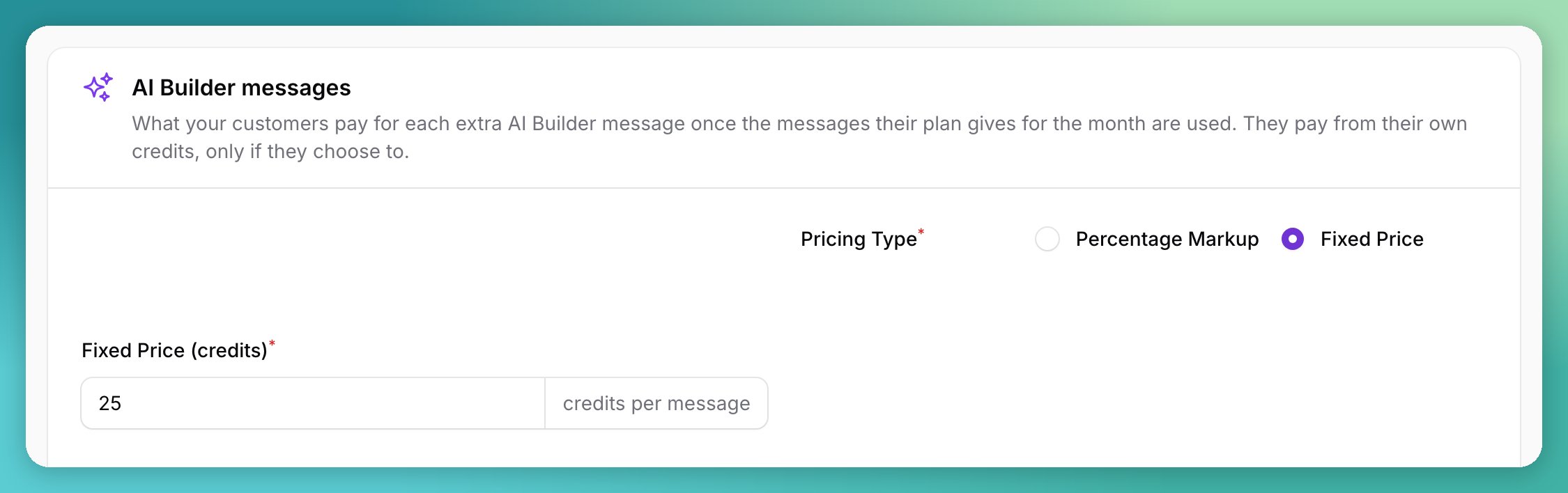
- Platform Base Cost is the platform’s price for one extra message. Your price can never be lower.
- Pricing Type: Percentage Markup (0 to 200% on the platform price) or Fixed Price in credits per message.
- Customer Cost Summary shows what your customer pays and your profit on each message.
- The offer appears only when the month’s messages are used. Not when only the weekly cap is reached, and never on a trial.
- The customer chooses it and sees the price first. It lasts until the month resets. If you raise your price, they are asked again.
- They pay from their own credits. Only the customer can choose it, in their own session.
What your customers see
Everything runs on your domain, with your name, icon and color.1
The dashboard card
A new customer sees Build your first assistant with Start building. This first chat is free. The card then shows the progress until the assistant is live, and the chat button at the bottom says when a card waits for the customer.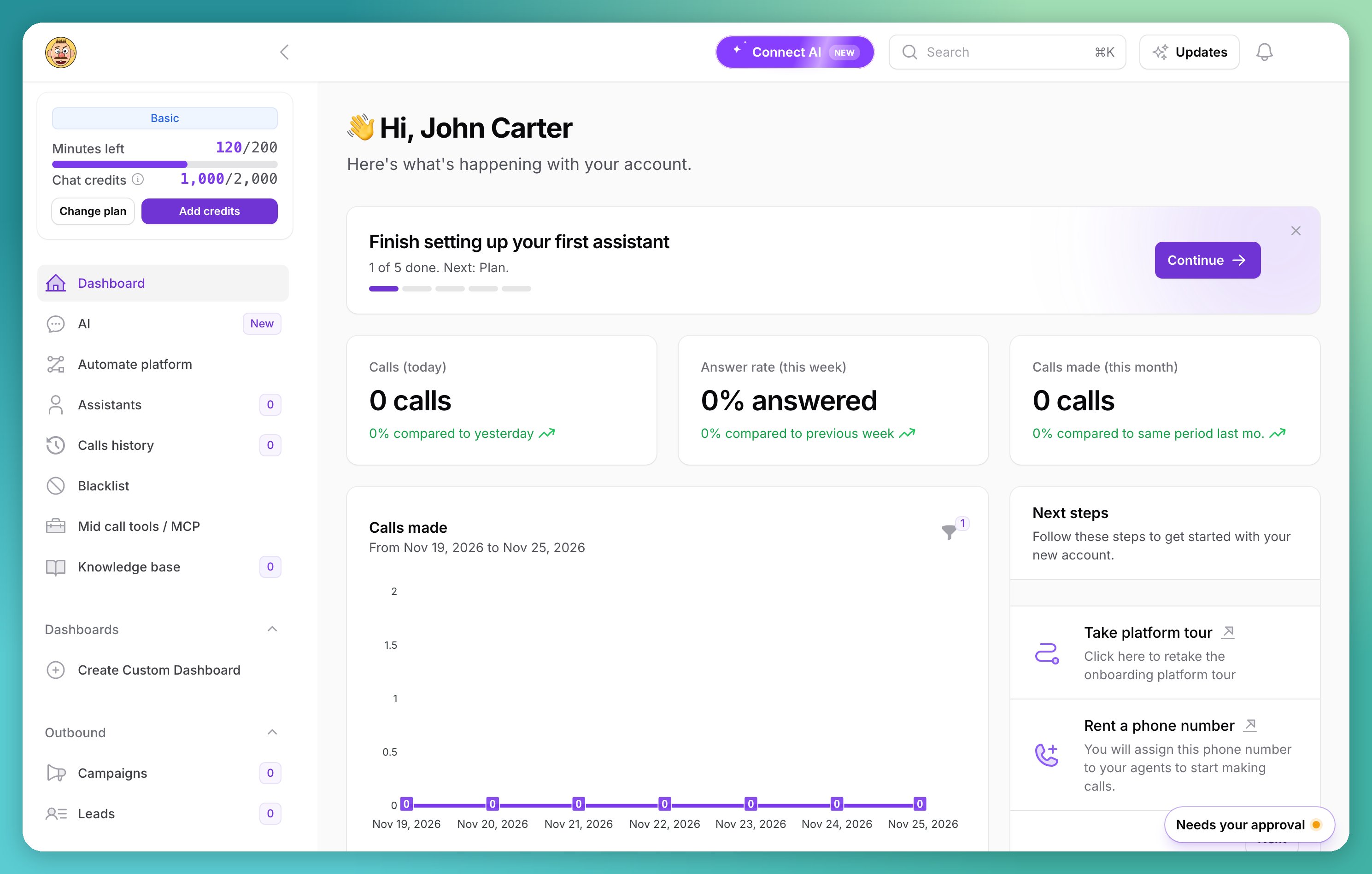
2
The chat
The customer describes the business, pastes a website or drops a file. The chat asks what it needs to know.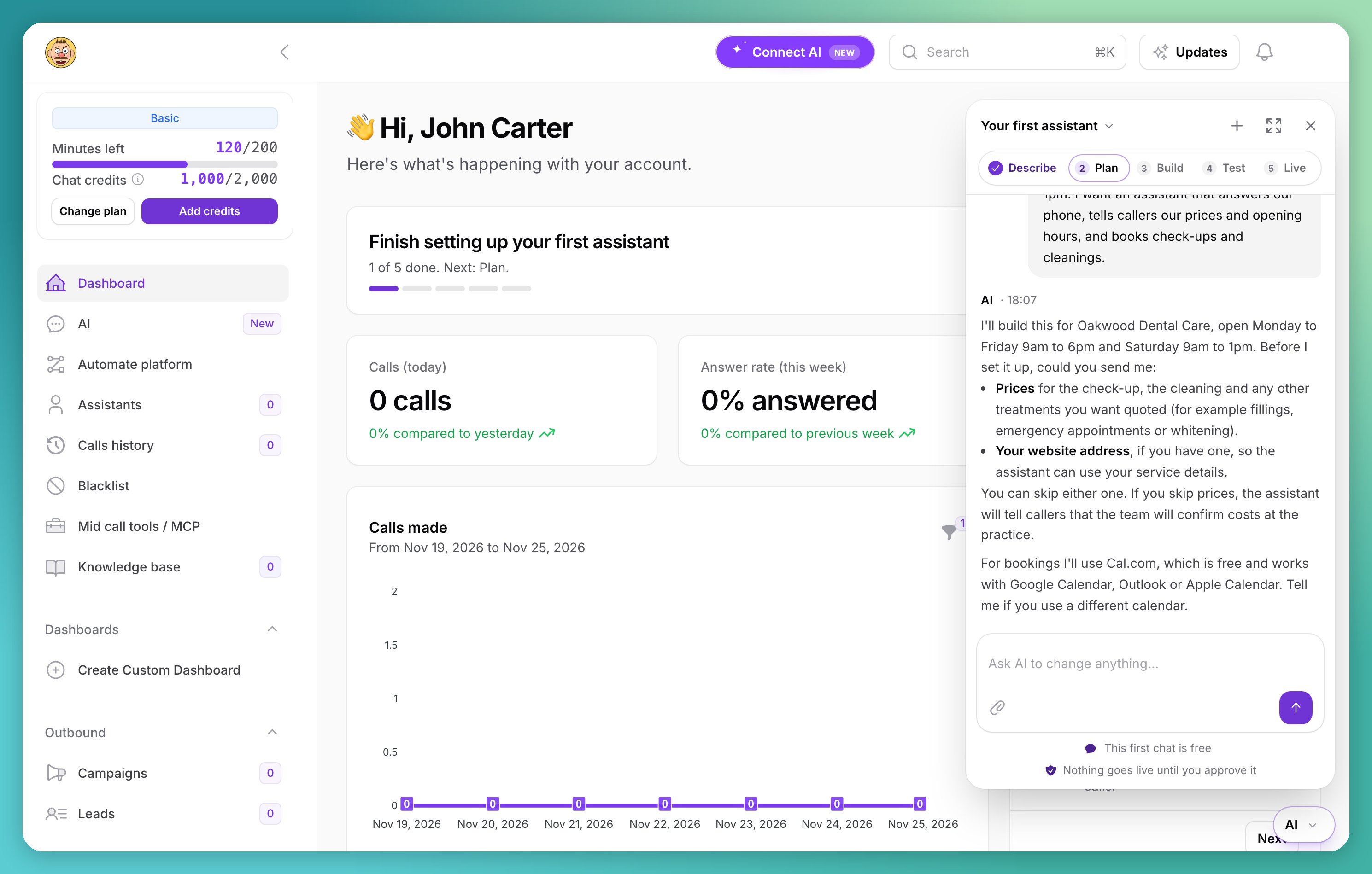
3
A change card
Every change waits on a card with exactly what will be written. The customer clicks Create, or Cancel to drop it.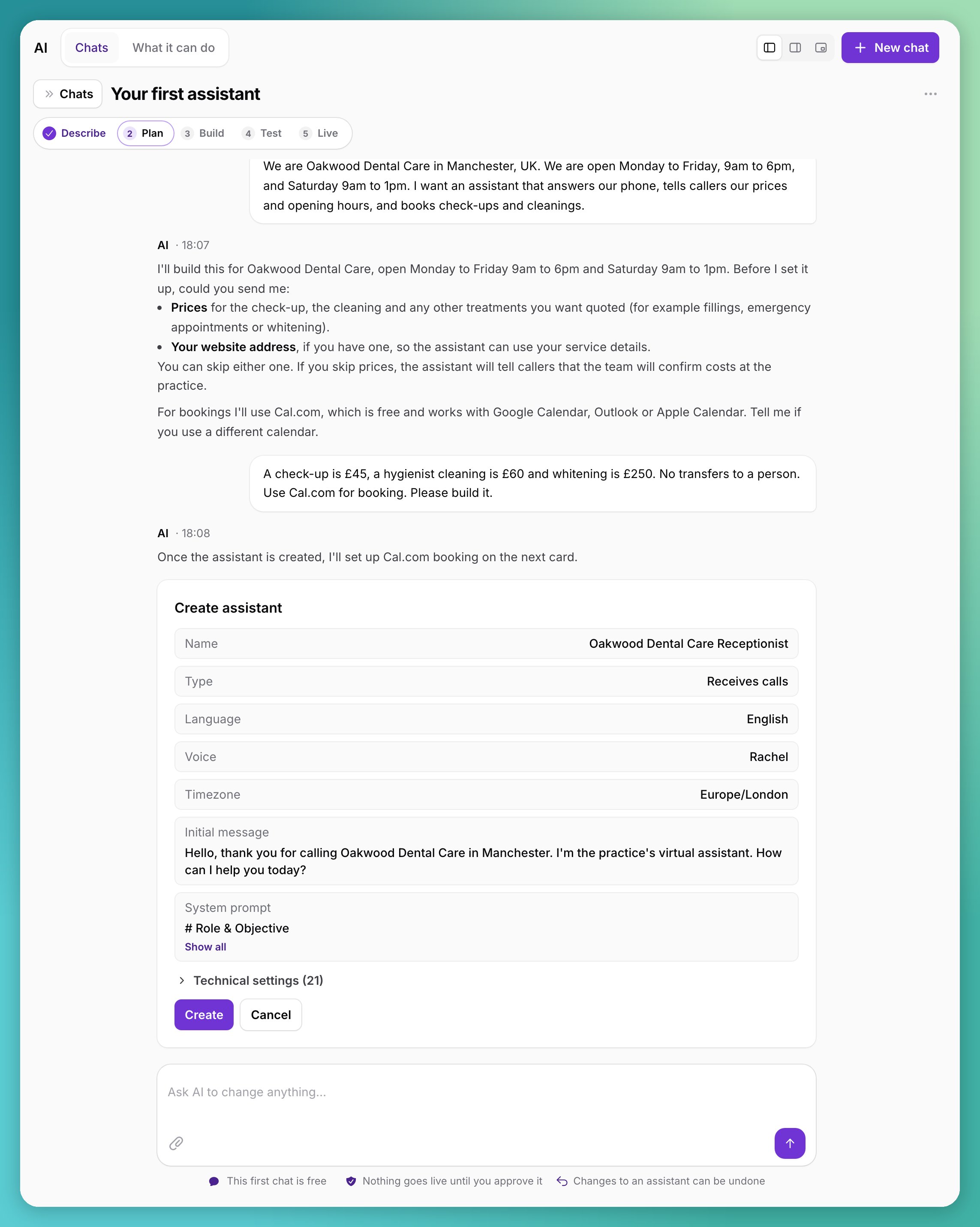
Manage your customers from the chat
You and your team can use the same chat to look after your customers. Open it in your app and ask in plain words. Questions are answered right away. Every change waits on a card that names the customer and shows the new values. Nothing changes until you click it.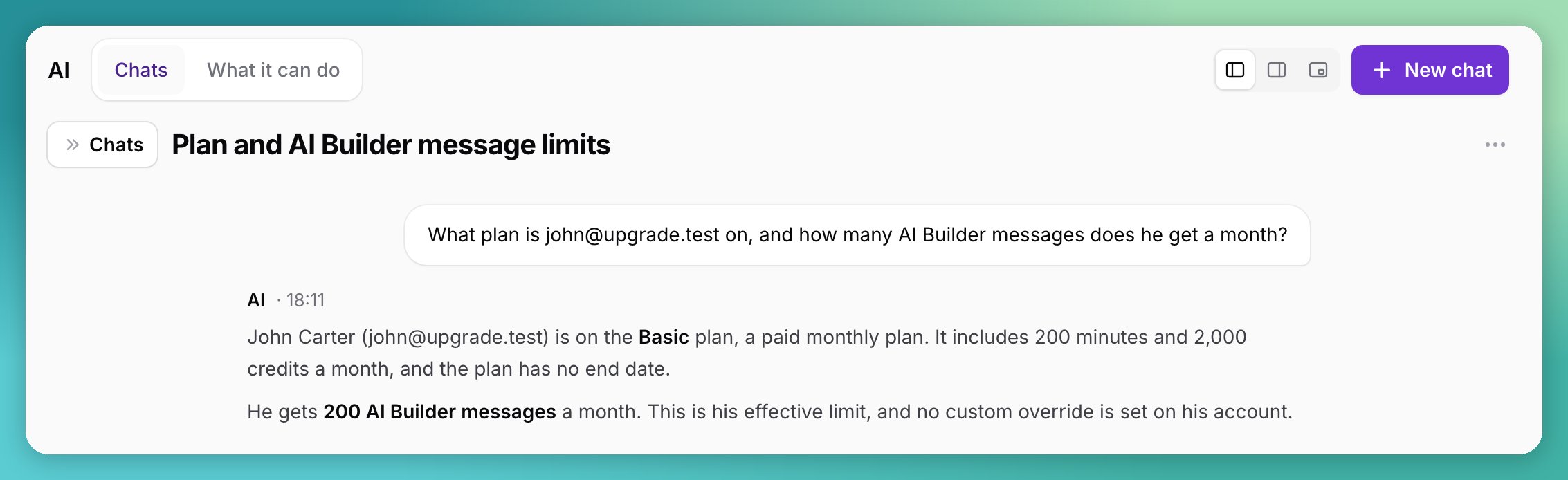
As the owner, you can do all of it. Each team member can do exactly what their role allows in your Administration Panel, and nothing more. The rights are the same as in your panel and in Connect AI.
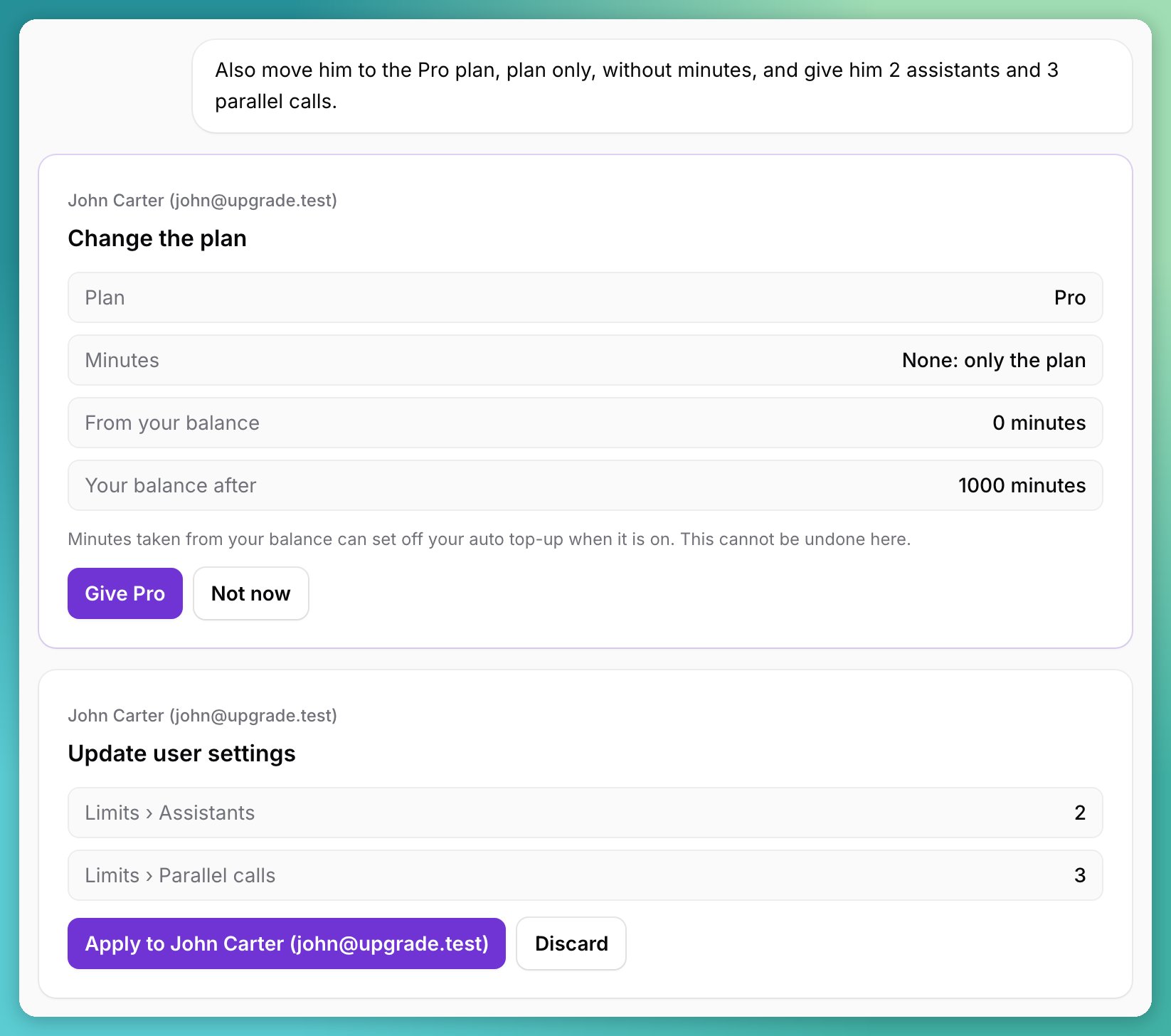
- The customer is named at the top of every card, with their email.
- Plan changes and balance moves show what is taken from your balance before you click. When the click moves minutes, the card is marked Uses minutes.
- Removing a plan and undoing a copy get their own card that says the change is permanent.
- The signup webhook card names the address where your new sign-ups will be sent.
AI Builder and Connect AI
Both let people work on their account by chatting. They differ in where the chat lives.
Behind both are the same actions, with the same checks: plan limits, balance, roles and what you hide. For example, a team member with only Billing Access can change your customers’ plans in both, and your platform settings in neither.
When to use which:
- AI Builder for customers who want help without leaving your app or paying for another tool, for a new customer’s first assistant, and for quick fixes after reading a call.
- Connect AI for people who already work in Claude or ChatGPT, and for longer sessions that mix your platform with their other tools in the same chat.
FAQ
How do I turn it off?
How do I turn it off?
Switch off Turn on AI Builder in Settings → AI Builder and click Save. Nobody on your platform sees it any more, not you, your team or your customers. Your name, icon and other settings are kept for when you turn it back on.To hide it only from customers, switch off Show to customers. To take it away from one plan, switch off AI Builder on that plan. For one customer, set AI Builder to 0 in Users → Edit.
A customer doesn't see it. Why?
A customer doesn't see it. Why?
Check, in this order:
- Turn on AI Builder and Show to customers are on.
- The customer has an active plan. Free accounts don’t get it.
- Their plan has AI Builder on, or the customer has AI Builder set to 1. A customer set to 0 never sees it.
- At least one area is on for them in What [name] can do for your customers.
- Their account is not in HIPAA mode.
My settings page says it is paused
My settings page says it is paused
Paused for your platform by support for now means support stopped the AI Builder for your platform. Your own choice is kept, and it comes back as it was when the pause ends. Contact support to know why.
What does it cost me?
What does it cost me?
The messages a plan includes cost nothing, to you or to your customers. Extra messages are paid by your customers from their own credits, at your price, and the difference above the platform price is your profit. Changes that cost money anywhere in the app, like buying a number, starting a campaign or giving a plan with minutes, cost the same through the chat, and always show the cost on their own card first.
Can it change things without approval?
Can it change things without approval?
No. It reads freely, but every change waits on a card. A card works once, runs every check again when clicked and expires after 30 minutes. Deleting always has its own card that says it is permanent.
Is my customers' data safe?
Is my customers' data safe?
- Each chat works only inside the account that is signed in, on your domain.
- API keys and passwords are typed on the card. They go straight into the setting and are never kept in the chat.
- Text from outside, like call transcripts, websites or documents, is treated as information, never as instructions. After it reads such text, every change asks on its own card.
- When you open a customer’s account with User view, the chat works as that customer, with their limits and their messages. You can’t choose paid messages for them.
Will my customers ever see the platform's name?
Will my customers ever see the platform's name?
No. On your domain the chat uses your name, icon, color and domain only. It never names the platform, the AI models or the companies behind them, and its notifications use your name.