

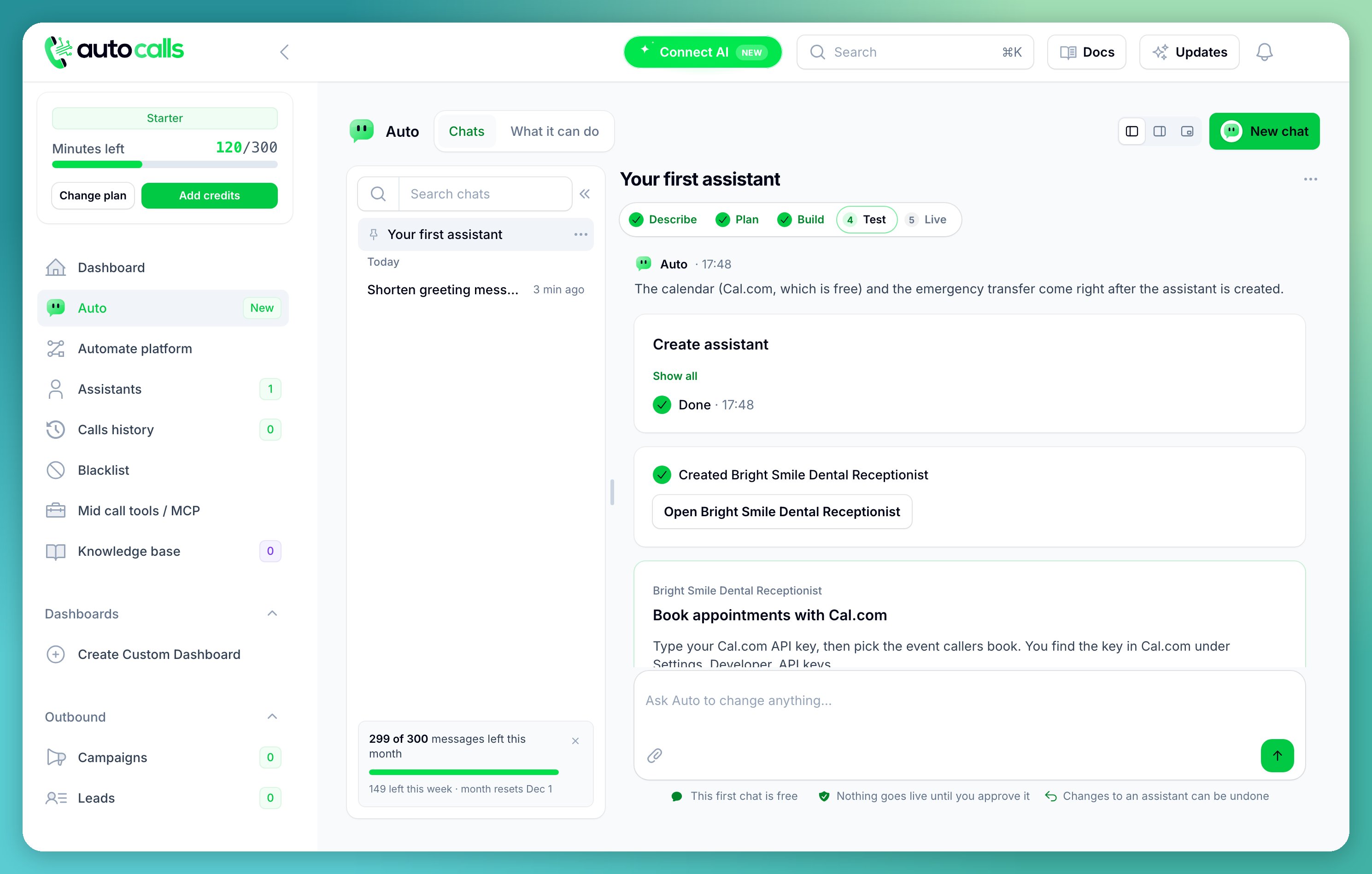
Nothing changes until you approve it
Auto can read your account at any time: assistants, calls, campaigns, knowledge bases, numbers. Every change it wants to make waits on a card that shows exactly what will be written. Click the button on the card to make it happen, or Discard to drop it.Nothing goes live without you
A new assistant starts as a draft. Putting it on a phone number is its own click.
Asks before spending minutes
Calls, campaigns, messages and purchases each get their own card, with the cost shown first.
Never sees passwords or API keys
You type keys on the card. They go straight into the setting, not into the chat.
Changes to an assistant can be undone
Every applied change to an assistant has an Undo button.
Where to find it
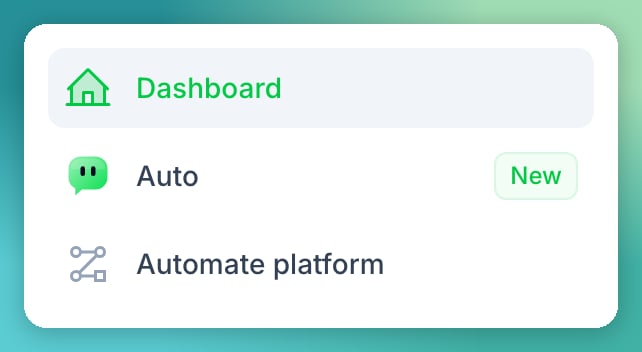
- Auto in the left menu opens the full page.
- Ask Auto at the bottom right of every page opens the chat over the page you are on.
- On a new account, the dashboard shows Build your first assistant. See Your first assistant.
- In Calls history, a short or failed call has an Ask Auto button that opens the chat about that call.
Things you can ask
Write in your own language. Here is what happens with a few typical requests.“Build an assistant for my dental clinic from https://example.com”
“Build an assistant for my dental clinic from https://example.com”
Auto reads the website, then shows a Create assistant card with the name, language, voice,
greeting and prompt. Click Create and the assistant is saved as a draft. It works in tests and
takes no real calls until it has a number.
“Make the greeting shorter”
“Make the greeting shorter”
Open the assistant’s page first, so Auto knows which one you mean. The card shows the old greeting
crossed out and the new one under it. Click Apply, and Undo if you change your mind.
“Add our delivery rules to the pizzeria assistant”
“Add our delivery rules to the pizzeria assistant”
Paste the rules or attach a file. Auto proposes where they go: in the assistant’s instructions, or
as a document in its knowledge base. You see the change on a card before anything is saved.
“Import these leads and create a campaign”
“Import these leads and create a campaign”
Attach a CSV or Excel file. Auto creates the campaign and imports the leads, each on its own card.
The import runs in the background and you get a notification when it is done. Starting the
campaign is a separate card that shows the estimated minutes.
“Why did yesterday's call drop?”
“Why did yesterday's call drop?”
Auto reads the call and its transcript, tells you what went wrong, and proposes a fix as a change
card. Faster: click Ask Auto on the call in Calls history.
“Connect my Cal.com so the assistant books appointments”
“Connect my Cal.com so the assistant books appointments”
You get a card where you type your Cal.com API key and pick the event callers book. The key goes
straight into the setting; the chat never sees it. Calendly and GoHighLevel work too.
“Send dental emergencies to my mobile”
“Send dental emergencies to my mobile”
A Transfer to a person card shows when the assistant transfers, what it says first, and the
number it calls. You type the number on the card.
“Make a Spanish copy of the sales assistant”
“Make a Spanish copy of the sales assistant”
A copy card creates a new draft with the same script and tools, translated.
What it covers
The What it can do tab on the Auto page lists everything, area by area, with examples. Each Try button starts a new chat with the text already in the box. Nothing is sent until you press send.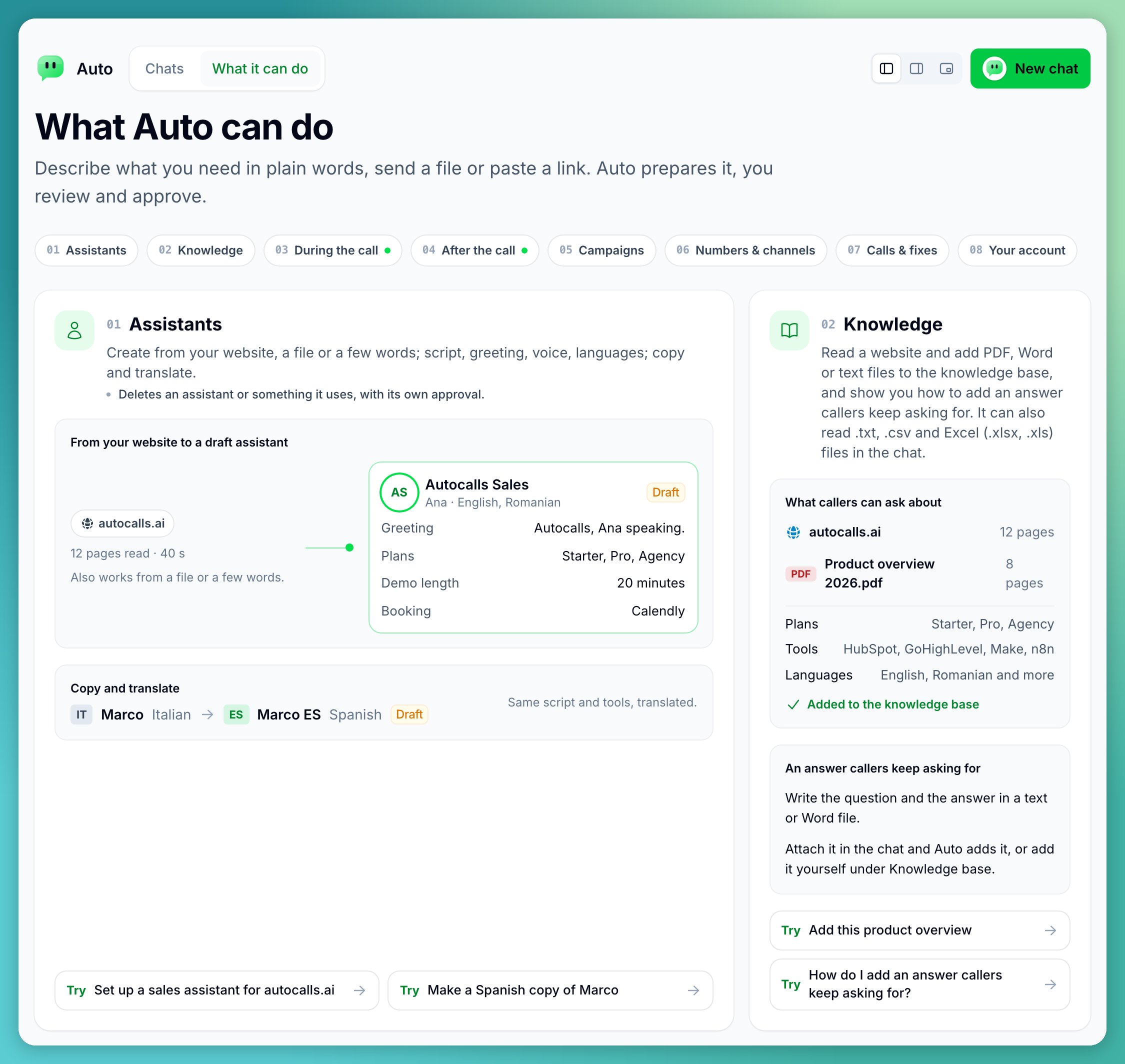
You only see the areas your plan includes. If you use the platform through a provider, the chat may
have a different name and icon. It works the same way.
Next steps
Your first assistant
From the dashboard card to a tested assistant on a number.
Using the chat
Views, cards, Undo, files and your chat list.
Messages and limits
What counts as a message and what happens when you run out.
FAQ
What Auto can’t do, your data, and how to undo.