

Start from the dashboard
Your dashboard shows a Build your first assistant card with one button, Start building. It opens the first chat with the message box ready. Once you have started, the card turns into Finish setting up your first assistant, shows how many steps are done and what comes next, and its button reads Continue.
The first chat
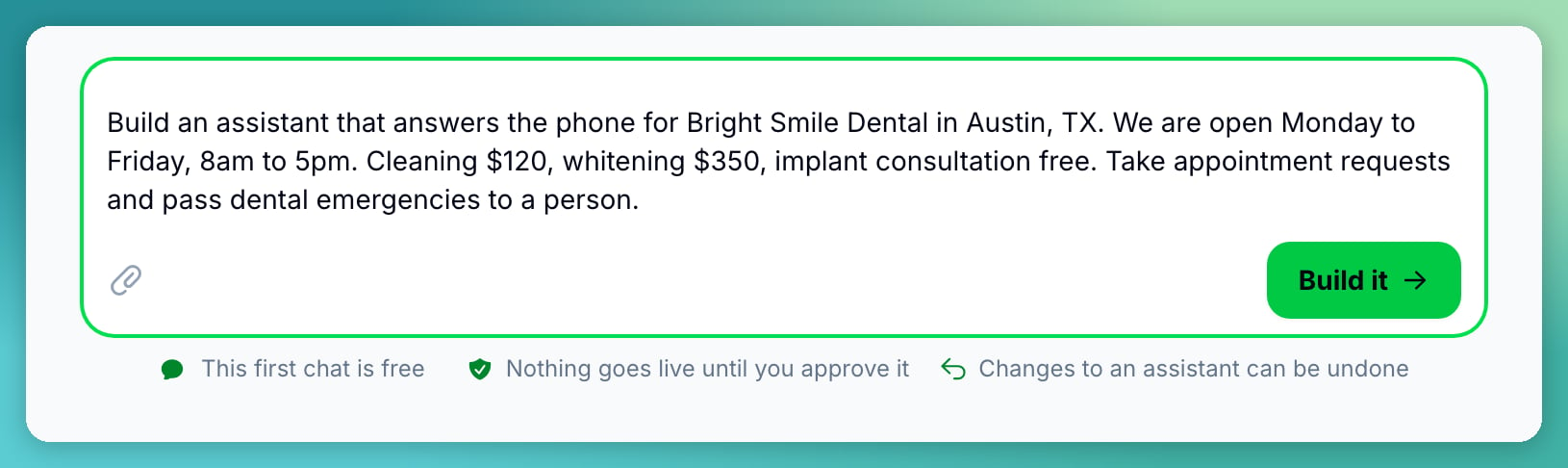
The chat is called Your first assistant and stays pinned at the top of your chat list. Start with any of these:- Your website address. Auto reads it to learn your hours, services and prices.
- A file, like a price list or an FAQ.
- A few words about your business, and what the assistant should do.
The five steps
The chat header tracks your progress.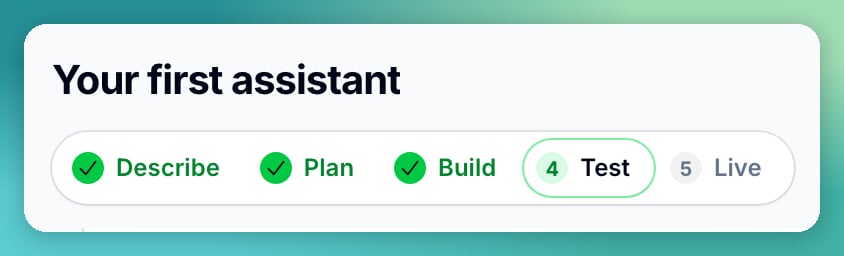
1
Describe
Send your first message. For example:Build an assistant that answers the phone for Bright Smile Dental in Austin, TX. We are open
Monday to Friday, 8am to 5pm. Cleaning $120, whitening $350, implant consultation free. Take
appointment requests and pass dental emergencies to a person.If something is missing, Auto asks. Pick one of the suggested answers or type your own.
2
Plan
Auto shows what it will build on a card: name, type, language, voice, greeting and prompt.
Show all opens the full prompt and Technical settings lists the rest. Click Create to
go ahead, or Cancel and say what to change.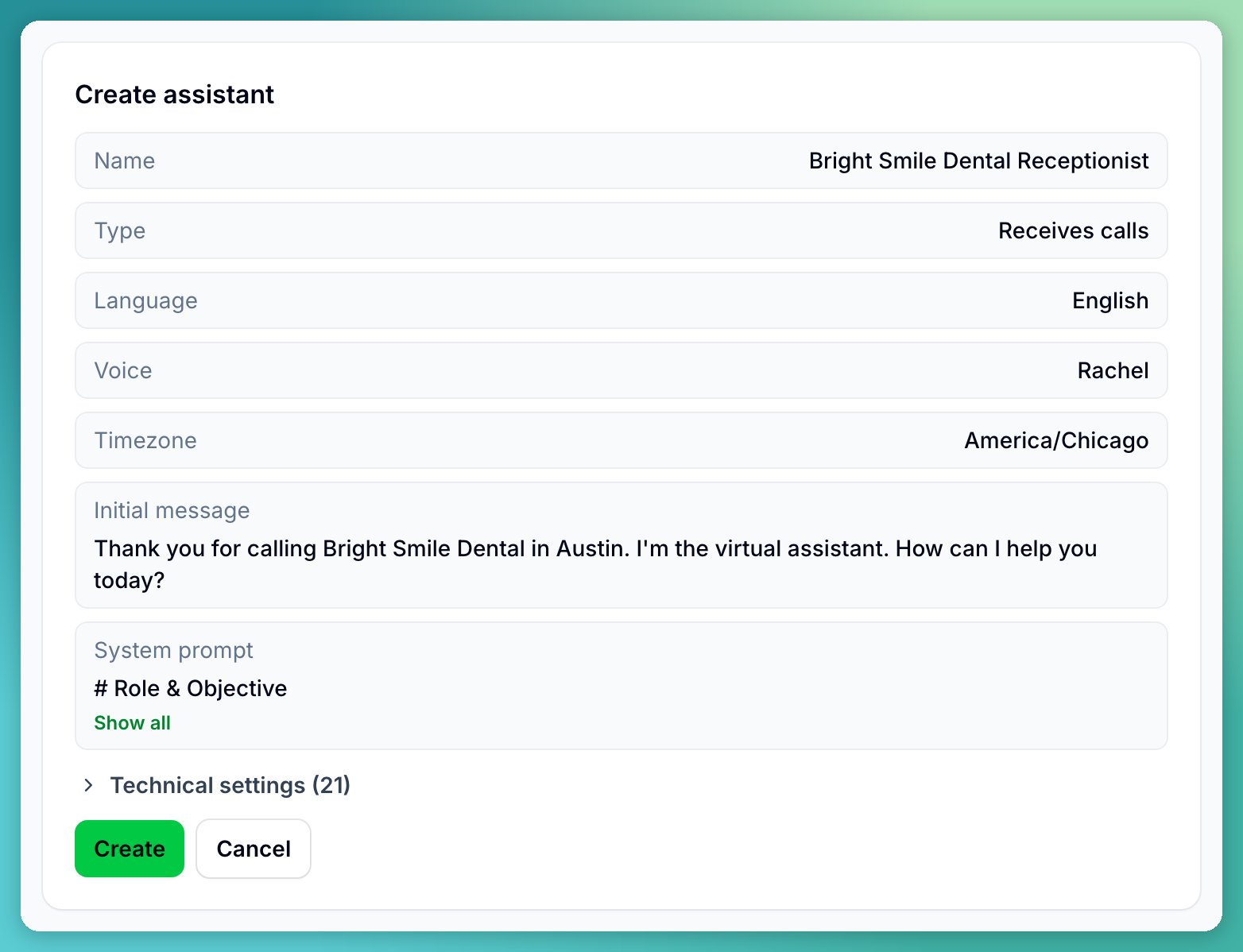
3
Build
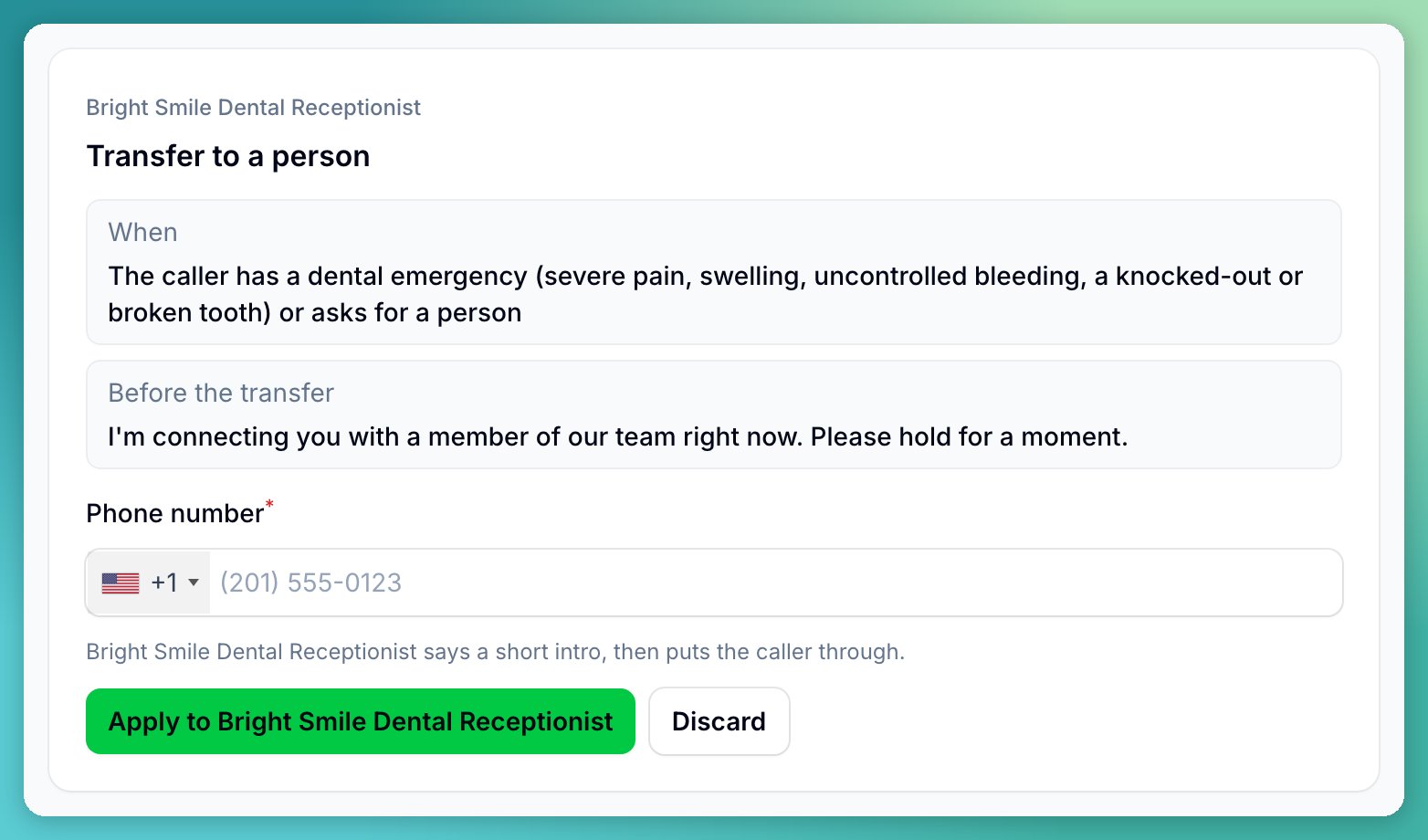
The assistant is created as a draft and the card links to it. Auto then offers the next pieces,
each on its own card, for example a transfer to a person for emergencies, or booking in your
calendar. Apply the ones you want.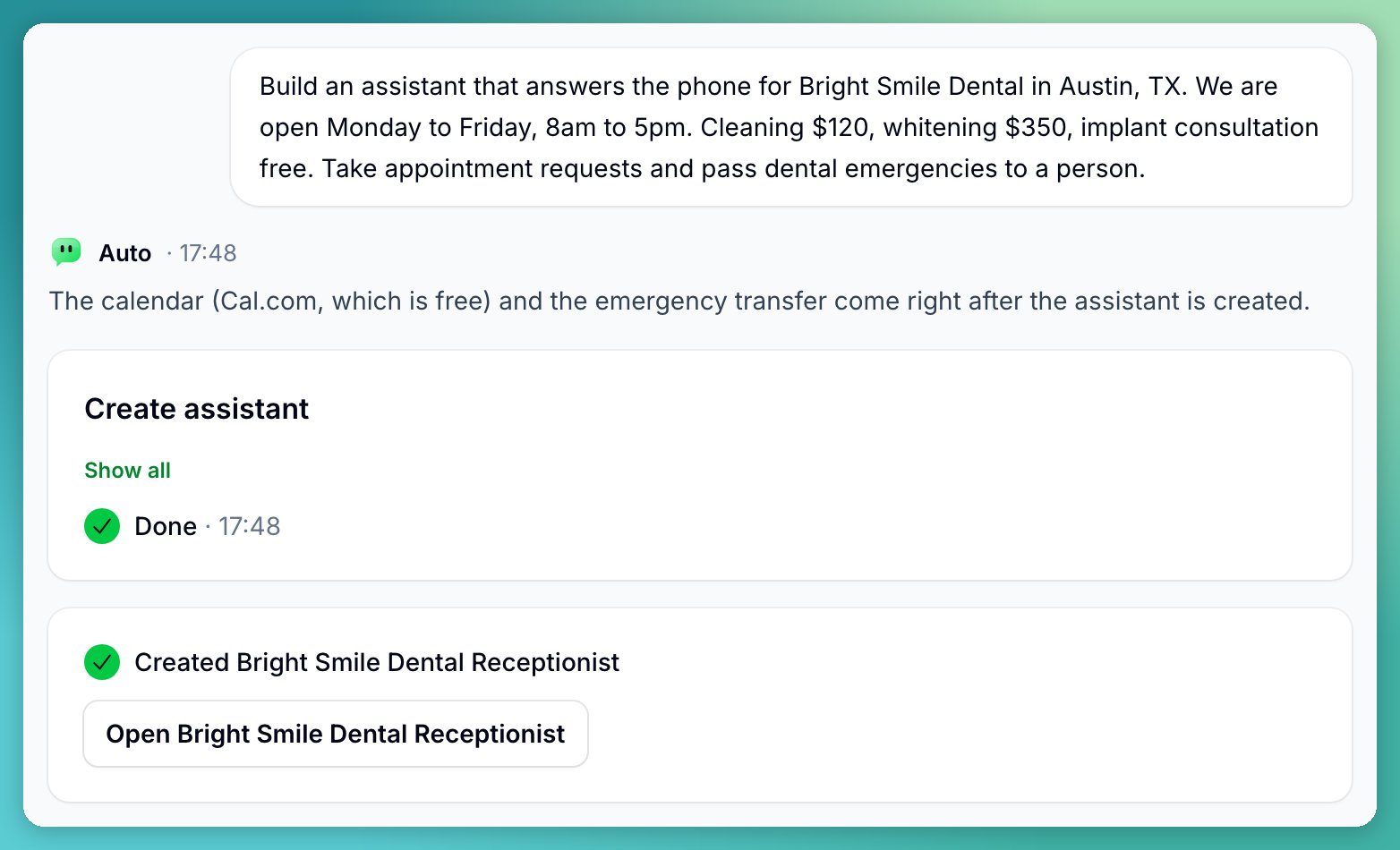
4
Test
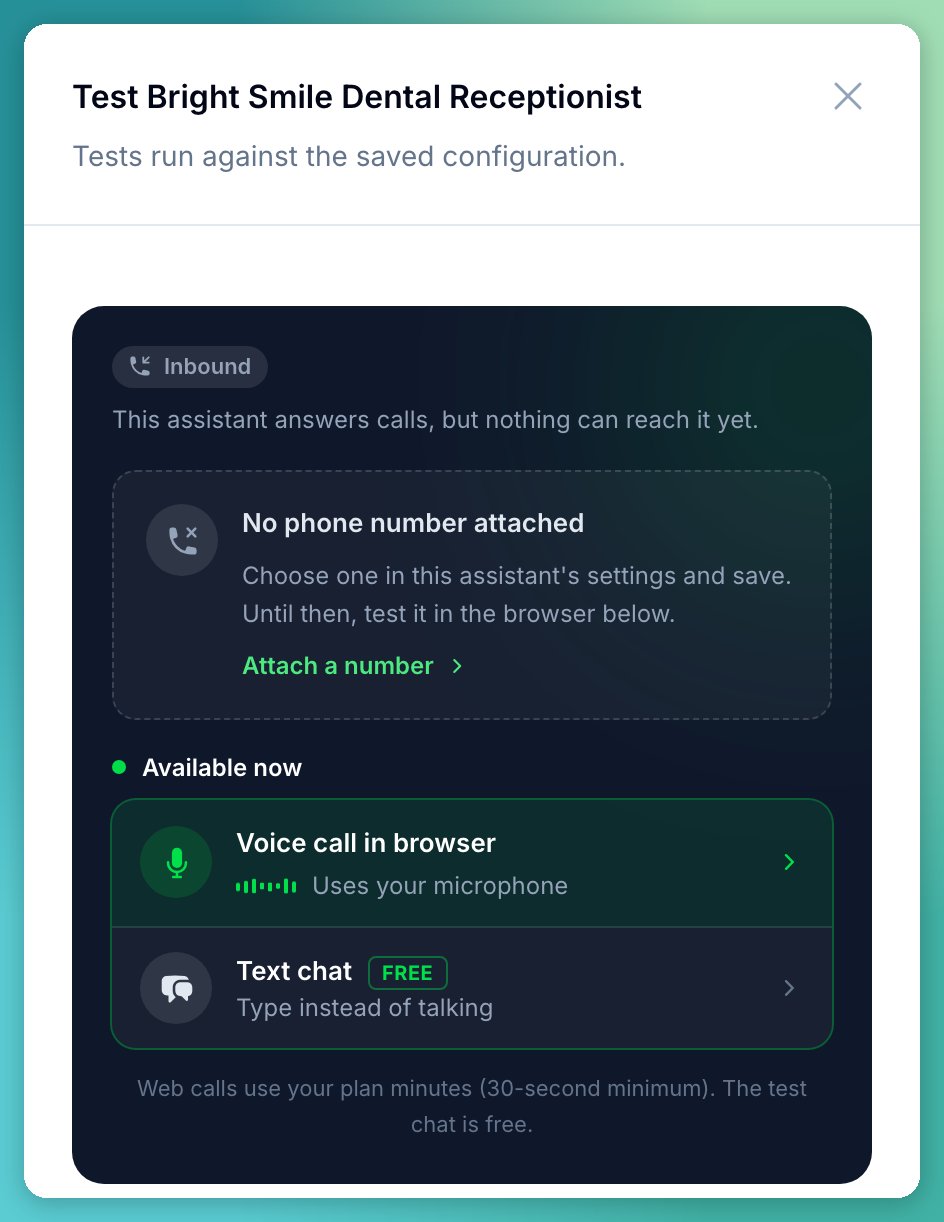
The Test card opens the test panel. Depending on the assistant, it calls your phone, you talk
to it in your browser, or you type to it in a text chat. Calls use your minutes; the text chat is
free. See
Testing your assistant.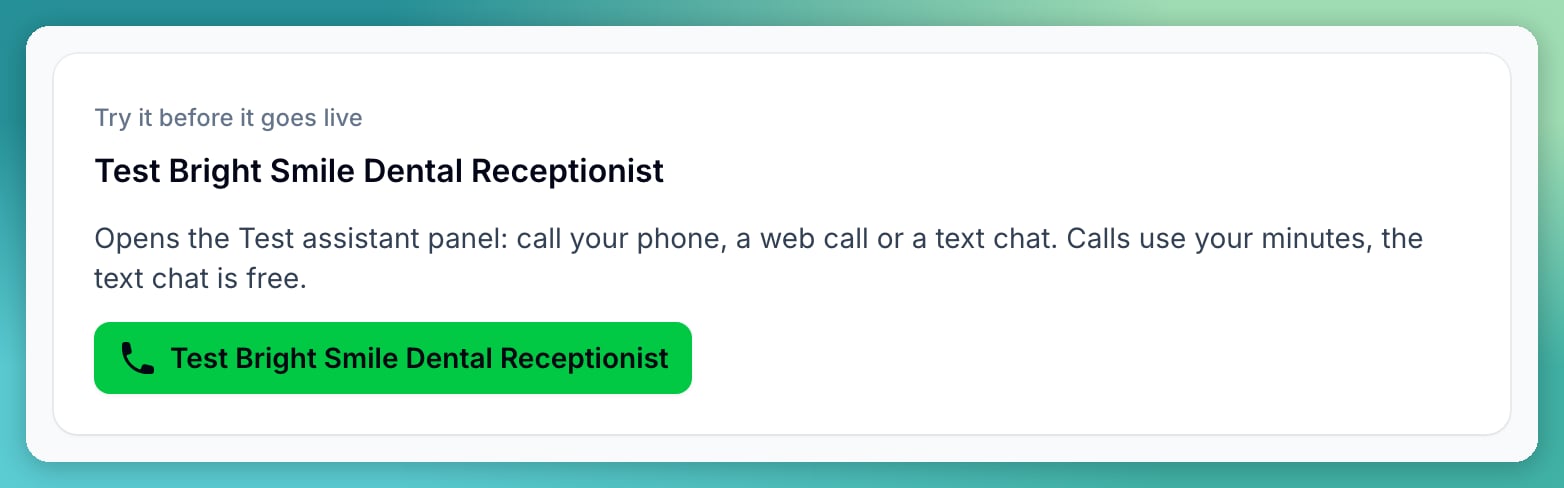
5
Live
Give the assistant a number: Put it on my number. The Go live card names the number. The
assistant stays a draft until you click Go live on that number, and Undo puts the number
back as it was.No number yet? Auto can show you numbers to buy, on a card with the monthly price, or explain how
to bring your own Twilio or SIP number. This step only appears if your plan includes phone
numbers.