

Where it opens
Ask Auto sits at the bottom right of every page. Click it to open the chat over the page you are on. The button also tells you what Auto is doing: Working…, Needs your approval (with an amber dot) when a card waits for you, or Done. Take a look.
When a card waits for you
The side panel next to an assistant's page
Sending messages
- Enter sends, Shift + Enter starts a new line.
- While Auto works, a line under the messages says what it is doing. Stop ends the step.
- When Auto asks a question, it shows answer buttons and You decide. Pick one or type your own.
- If a step needs more time, Auto says I need one more step to finish with a Continue button.
”Looking at”
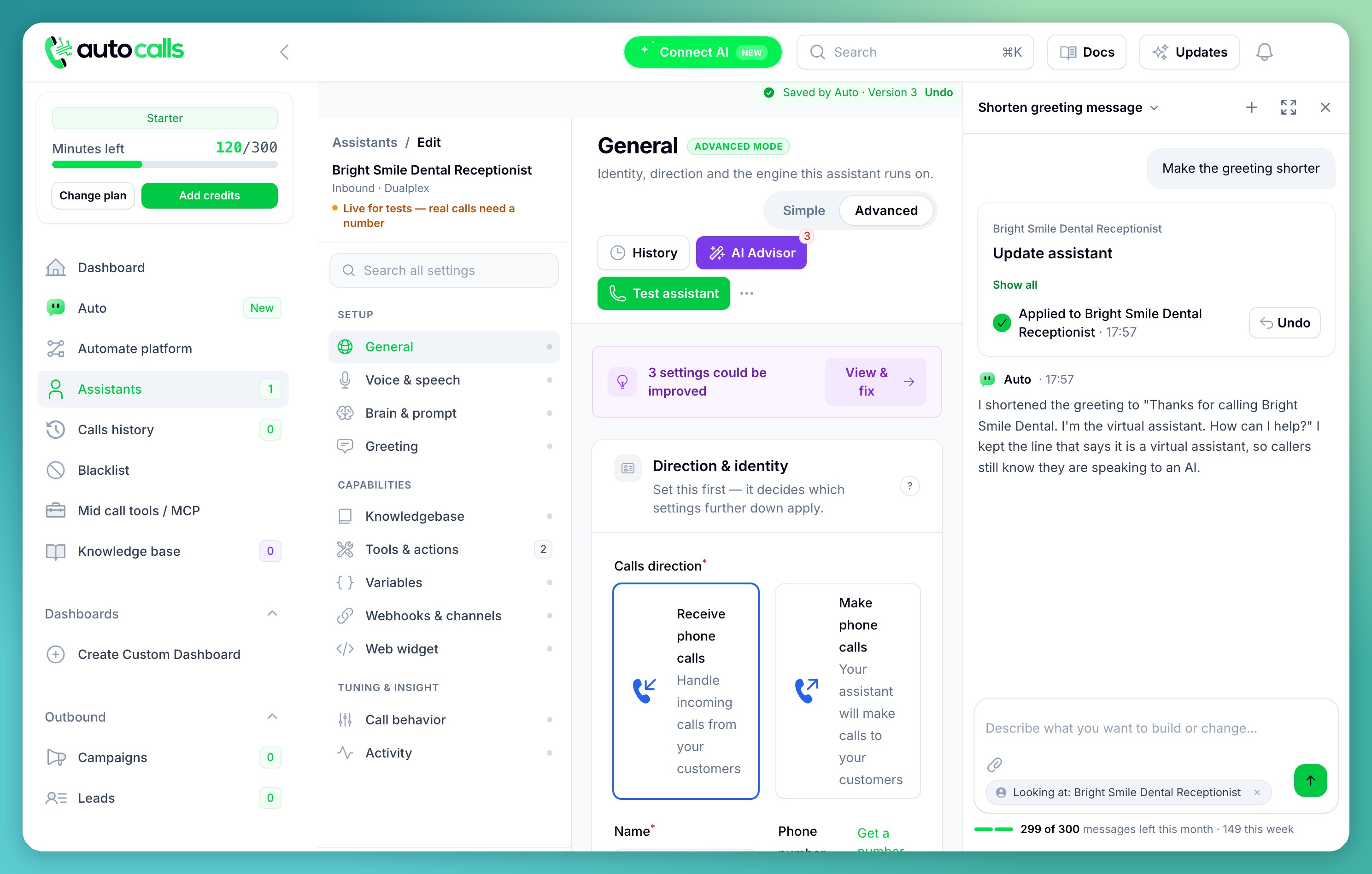
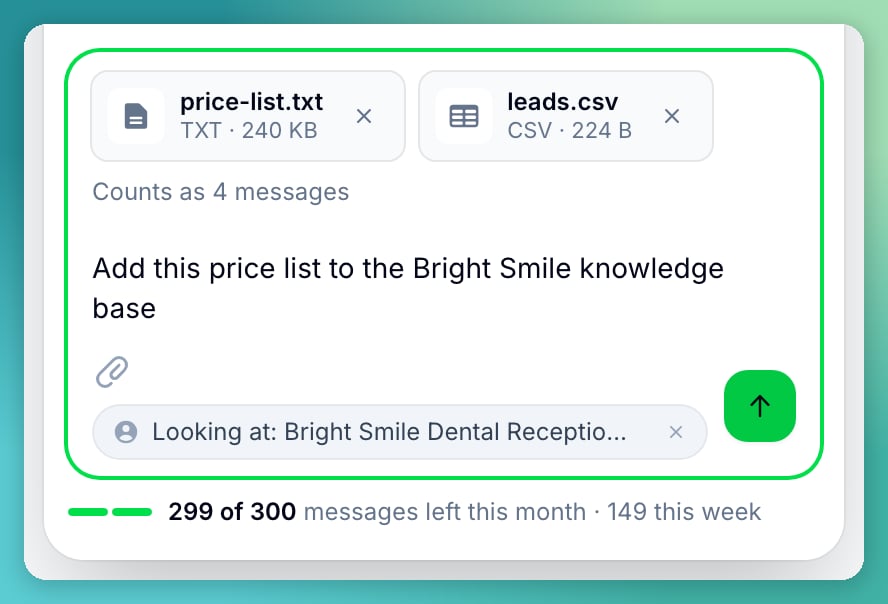
When you open the chat on the page of an assistant, a campaign, a knowledge base, a mid-call tool or a call, the message box shows Looking at: with its name. Auto knows you mean that one, so Make the greeting shorter is enough. Click × to remove it.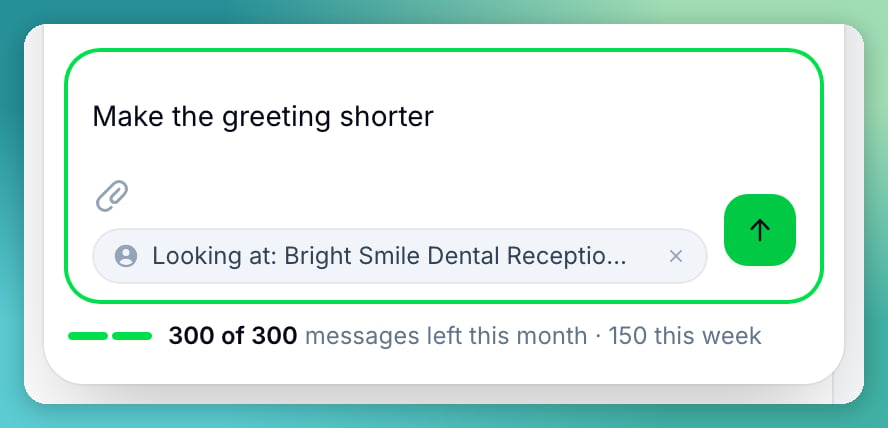
Cards
Every change waits on a card. The card lists each value it will write. For a change, the old value is crossed out and the new one is shown under it.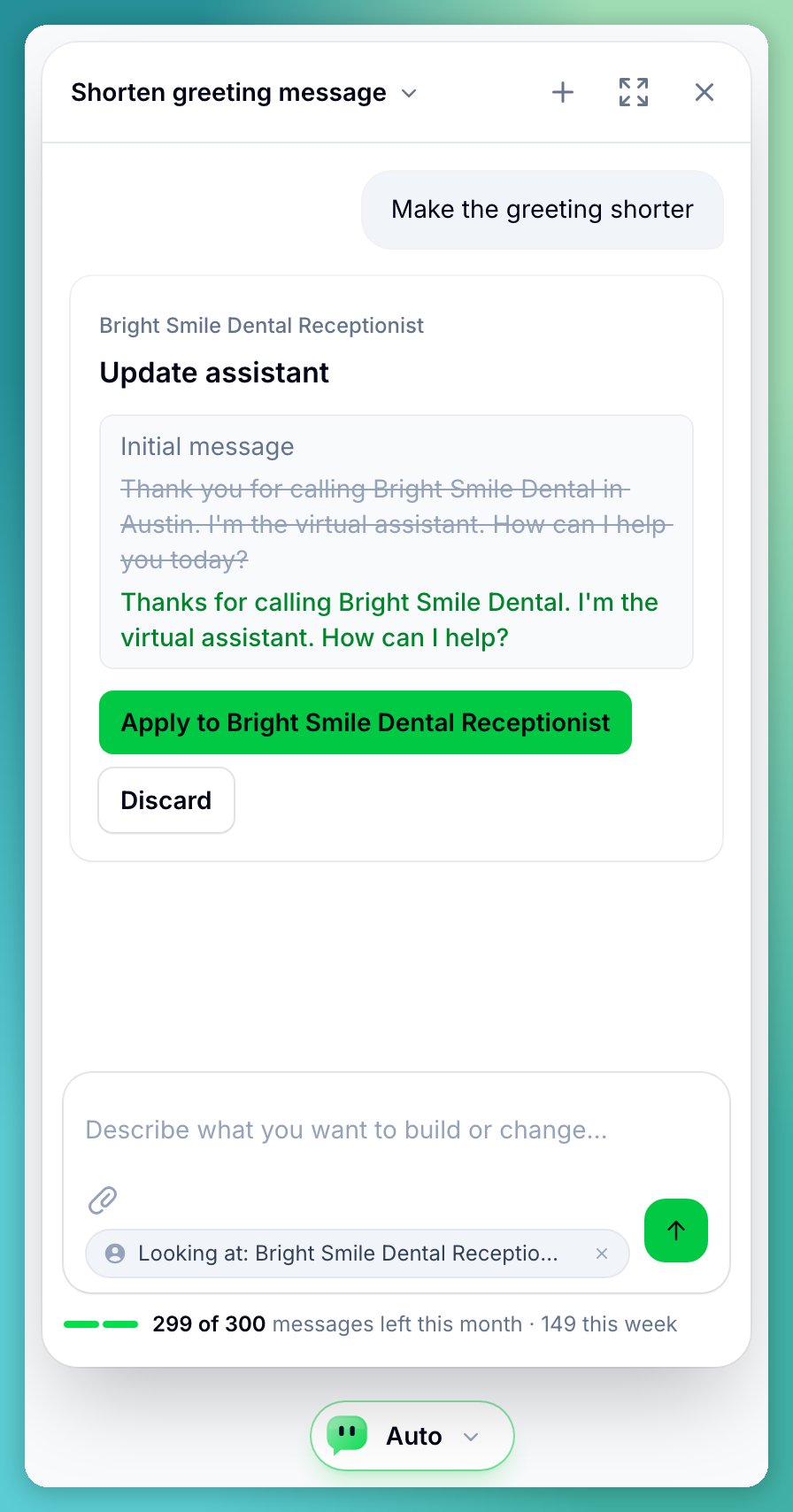
- Apply (or Create, Build it) makes the change. Discard or Cancel drops it, and nothing is changed.
- A card you leave unanswered expires after 30 minutes. Nothing is changed; ask again if you still want it.
- Approving, discarding and Undo don’t use messages.
Plans
When Auto has several plain changes ready, it can put them on one Plan card with numbered steps. Build it runs them all. Untick an optional step to skip it, or click Revise plan and say what to change.Undo
After you apply a change to an assistant, the card shows Applied to the assistant and an Undo button. Undo puts the previous values back.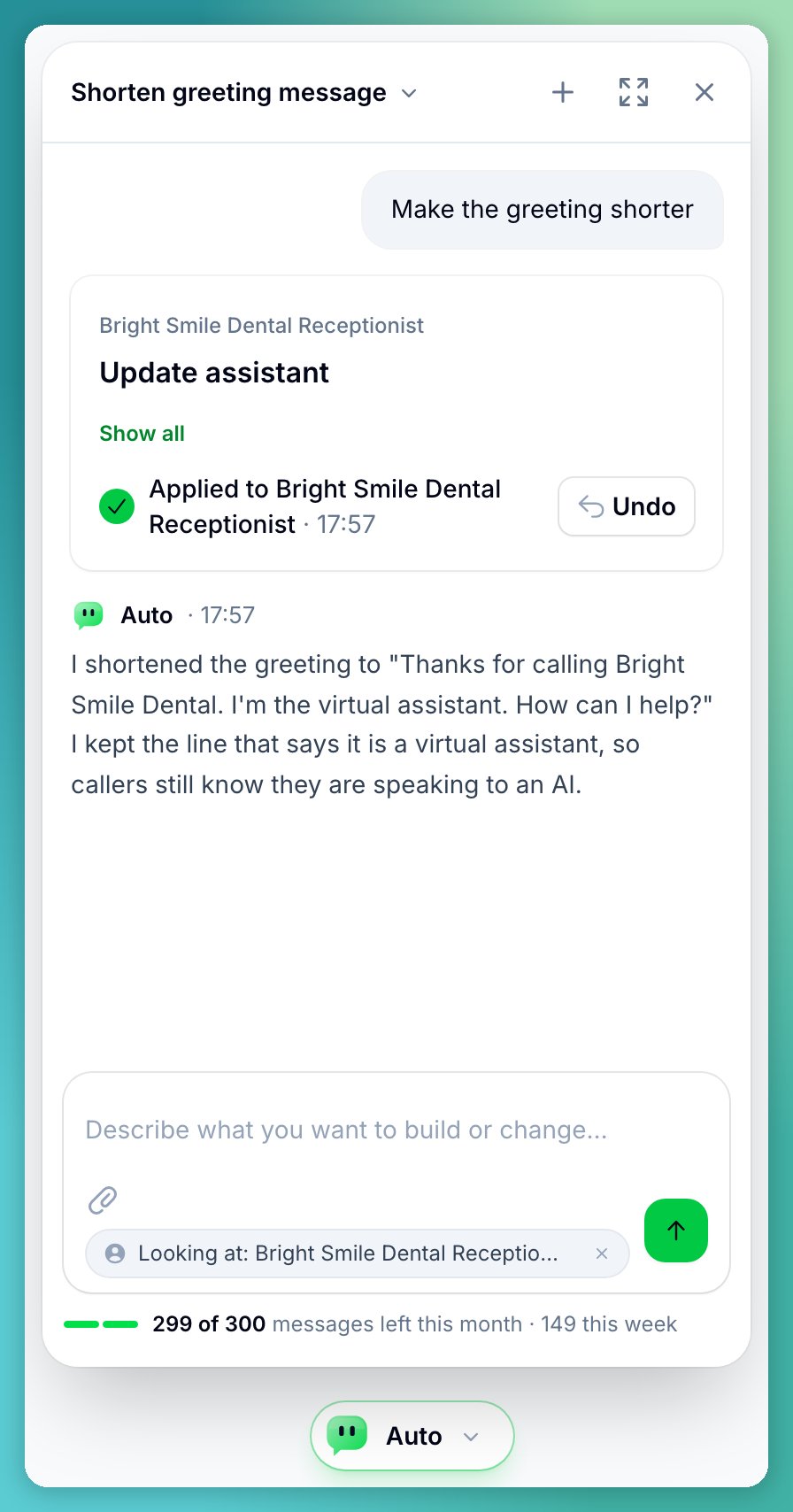
Cards that always stand alone
These never share a card with anything else:- Anything that costs money or minutes: a call, starting a campaign, buying a number, changing your plan. The card shows the cost before you click, for example the monthly price of a number or the estimated minutes of a campaign.
- Anything that sends messages: an SMS or a WhatsApp message.
- Anything that sends data outside your account: the card names where the data goes.
- Going live on a phone number.
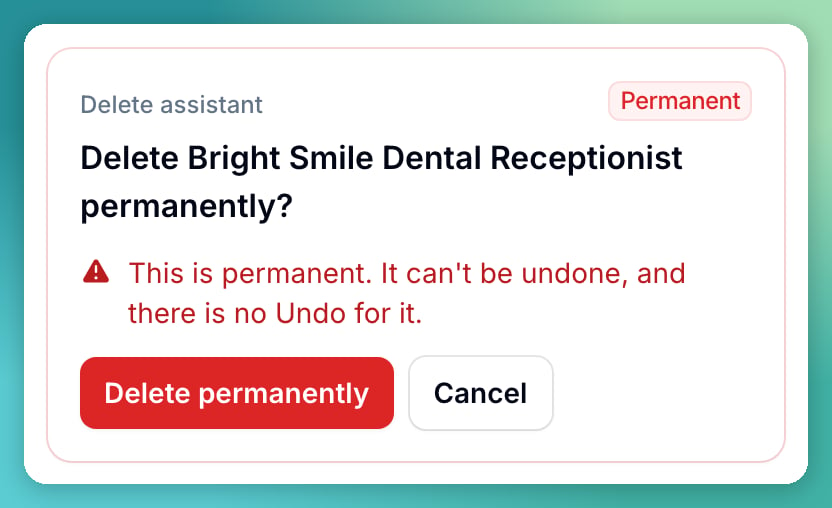
- Deleting something. The card is red, says Permanent, and has no Undo.
Keys and passwords
When a setting needs an API key or a password, you type it on the card. It goes straight into the setting and the chat never sees it. For services that use a sign-in, like Calendly, the card opens the sign-in in a new tab.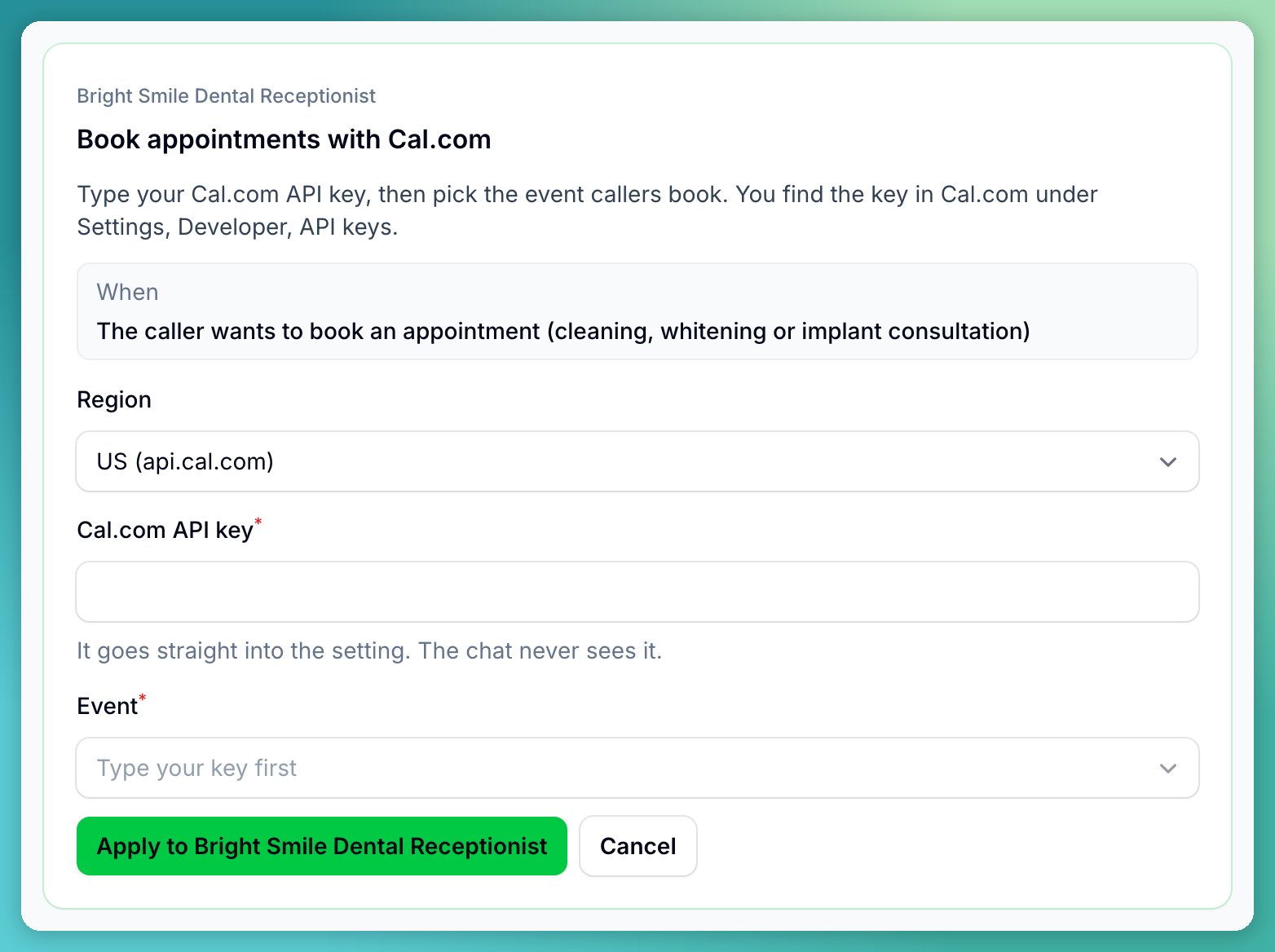
Warnings on a card
- This will be refused: a check would stop the change, for example your balance. The card tells you why before you click.
- This came from reading your calls (or web pages): callers and websites can say anything, so check the change before you apply it.
- Live: the assistant already takes calls. The change applies from the next call.
Attaching files
Click the paperclip, or drop files on the message box. You can attach a few files at a time.
A message with large text files counts as more than one message. The box shows Counts as N
messages before you send, so you can remove a file with × first. PDF and Word files don’t add
to the count. See Messages and limits.
Your chats
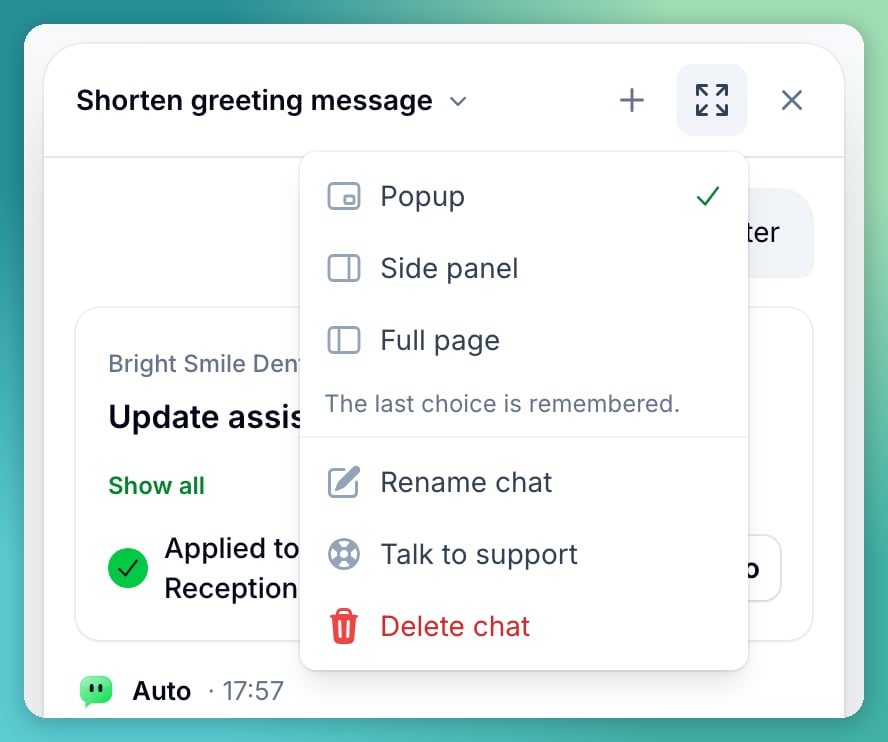
On the full page, your chats are in the left column. In the popup and the side panel, click the chat title to open the list.- Search chats finds older chats. Chats are grouped by Today, Yesterday, Previous 7 days and Older; your first-assistant chat stays pinned.
- Needs you marks a chat with a card waiting for you. Working marks one that is still busy.
- New chat (or +) starts a fresh chat. A new topic works best in a new chat.
- Rename chat and Delete chat are in the chat menu. Deleting a chat keeps everything it built.
A very long chat can reach its limit. Auto then asks you to start a new chat; everything you built
keeps working.