

Why FQDN? The connection type must be FQDN — not Credentials or IP Address. Credential connections require SIP REGISTER for inbound calls, which our platform doesn’t send. FQDN connections route inbound calls directly to our SIP server and authenticate outbound calls via credentials.
Step 1: Create SIP Connection
- Log in to the Telnyx Mission Control Portal
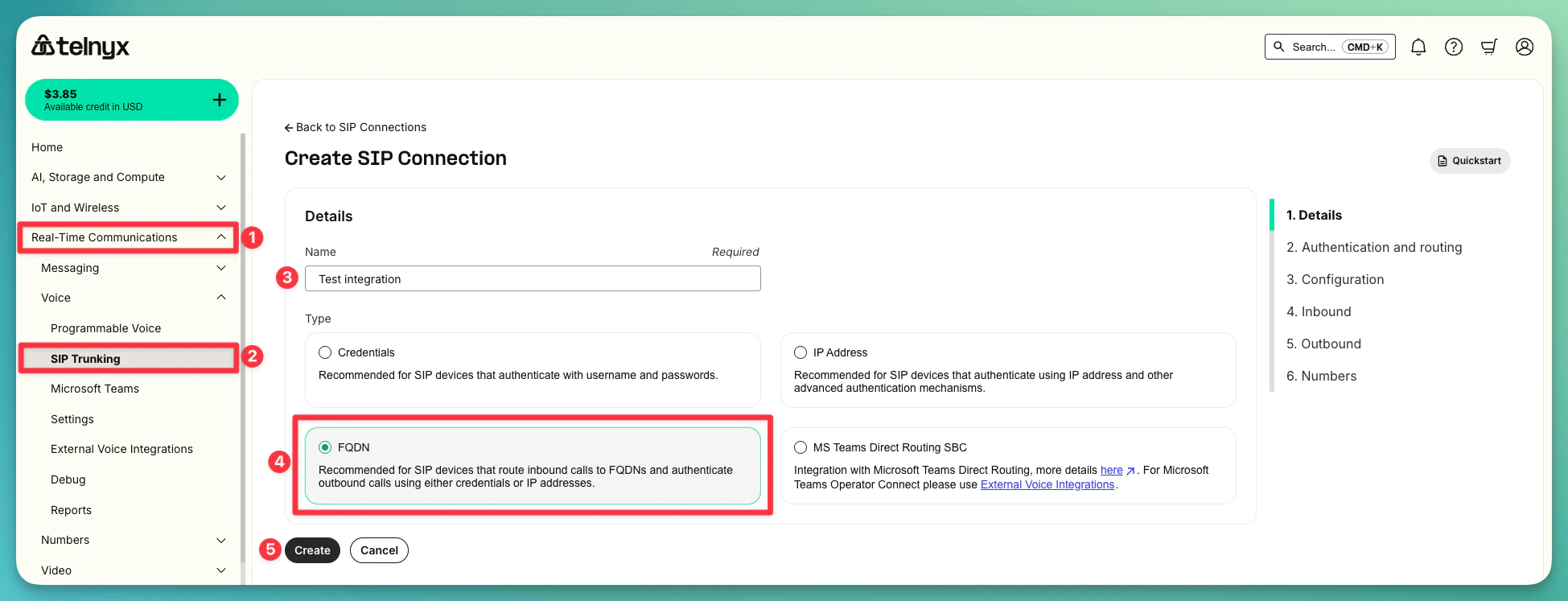
- Navigate to Real-Time Communications → Voice → SIP Trunking
- Click Create SIP Connection
-
Name: Choose a name (e.g.,
my-company SIP trunk) - Type: Select FQDN
-
Click Create — this opens the setup wizard
Step 2: Authentication and Routing
The wizard takes you to the Authentication and routing step. Here you’ll add the FQDN for inbound call routing and set up outbound credentials.Add FQDN
-
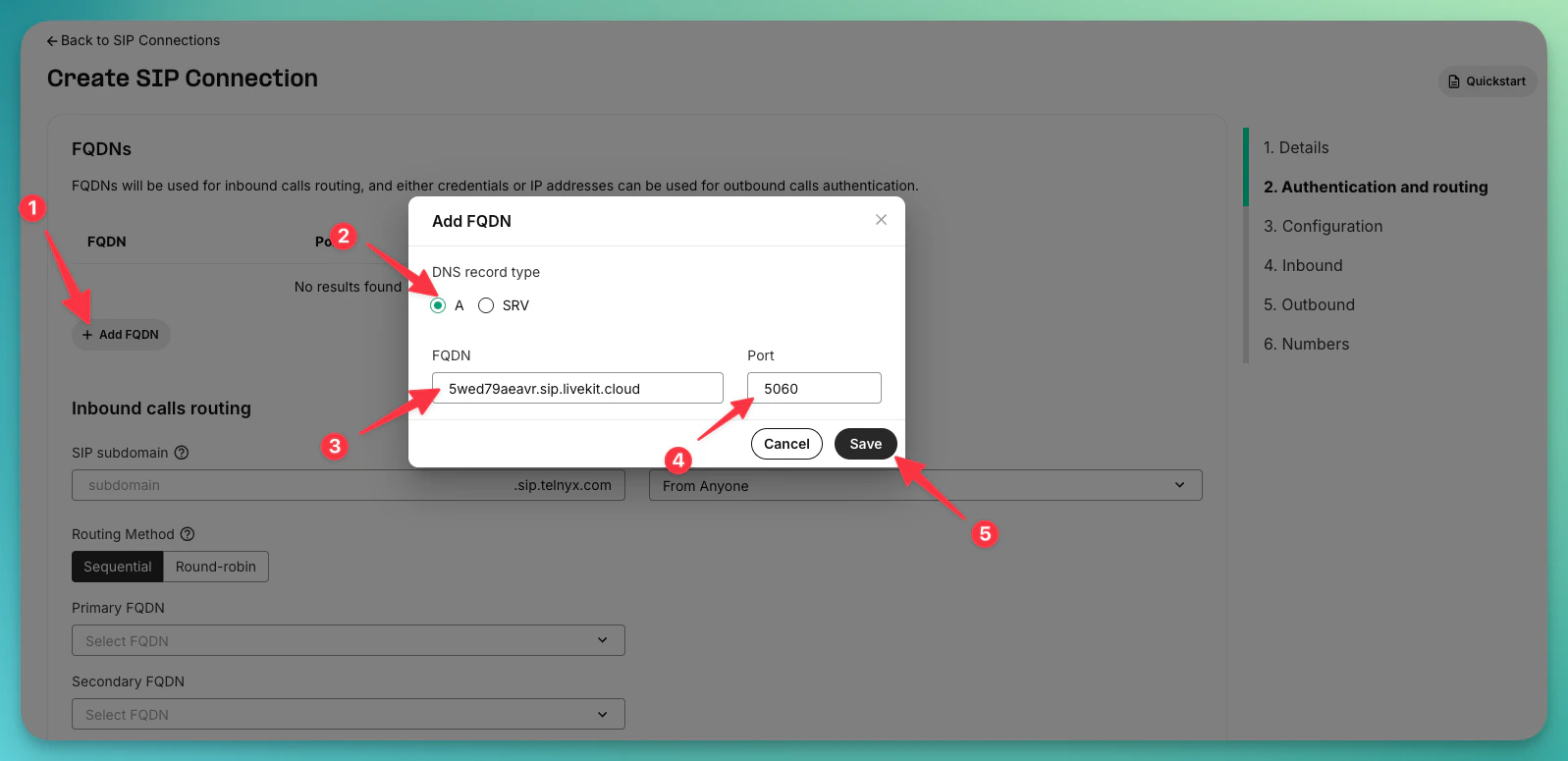
Click ”+ Add FQDN” and enter:
- DNS Record Type:
A - FQDN:
5wed79aeavr.sip.livekit.cloud - Port:
5060
- DNS Record Type:
-
Click Save
Inbound Calls Routing
Scroll down to the Inbound calls routing section on the same page:-
SIP subdomain: Enter a name (e.g.,
yourcompany) — this createsyourcompany.sip.telnyx.com - Receive SIP Subdomain calls: Set to From Anyone
-
Primary FQDN: Select
5wed79aeavr.sip.livekit.cloudfrom the dropdown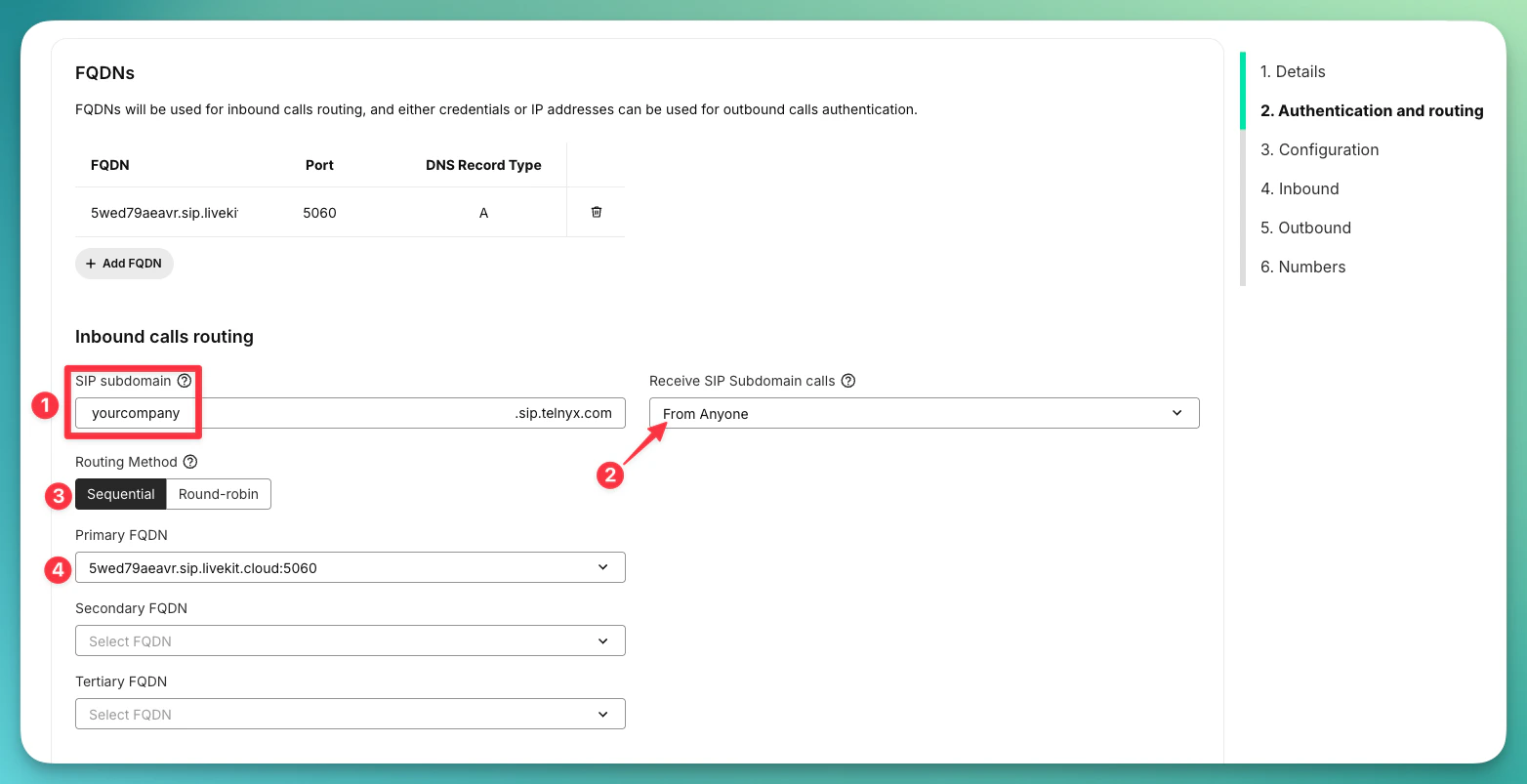
Outbound Authentication
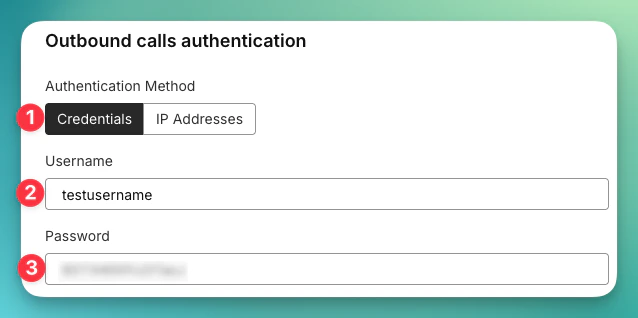
Scroll down further to the Outbound calls authentication section:- Method: Select Credentials
-
Set a username and password — save these, you’ll need them when importing the number into the platform
Step 3: Configuration
The wizard shows the Configuration page with connection details, webhooks, and advanced settings. You don’t need to change anything here — just verify that the Type shows FQDN Connection and click Next.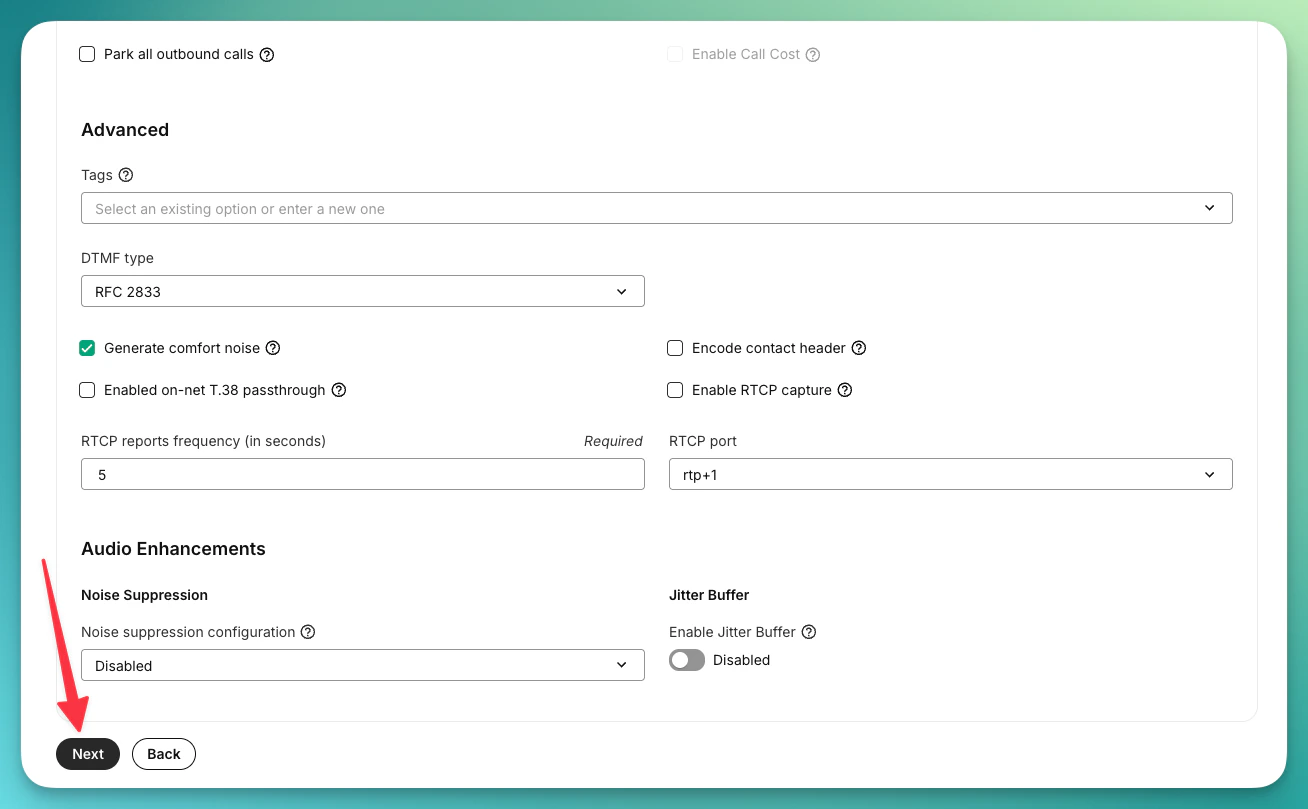
Step 4: Inbound and Outbound
The wizard will go through the Inbound and Outbound steps. Since you already configured these in Step 2, verify the settings are correct and click Next on each. On the Outbound page, make sure:- Outbound voice profile: Select your profile (or “Default”)
- Localization country: Select your country
-
Channel limit: Set to
10or higher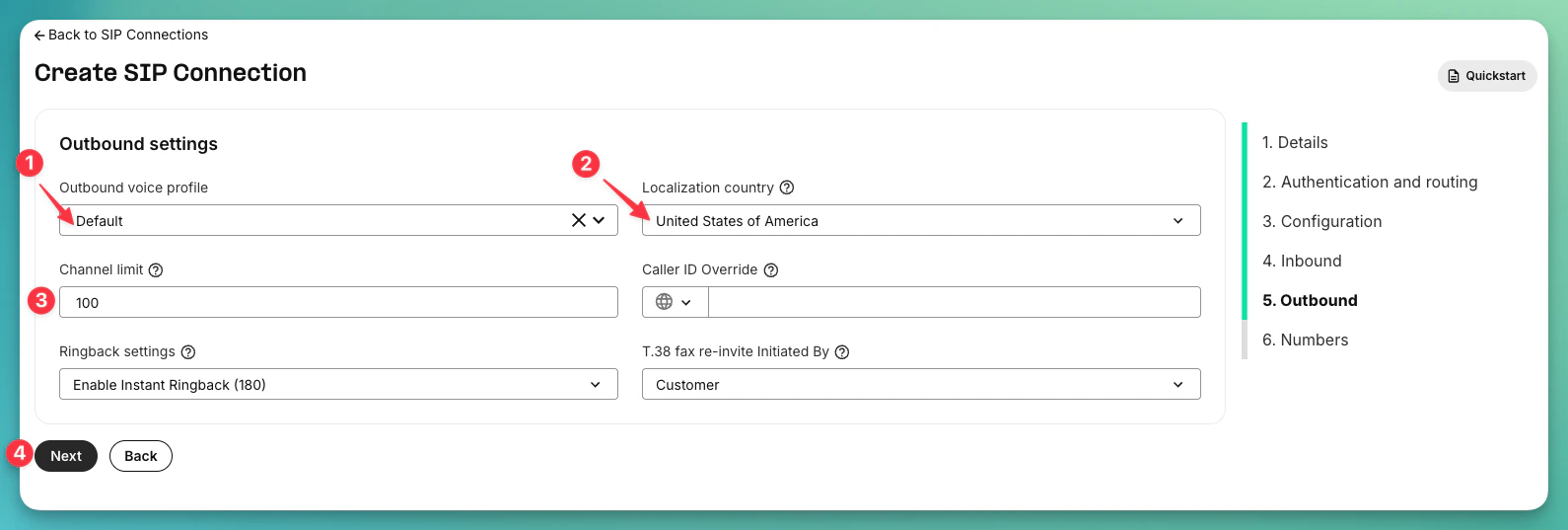
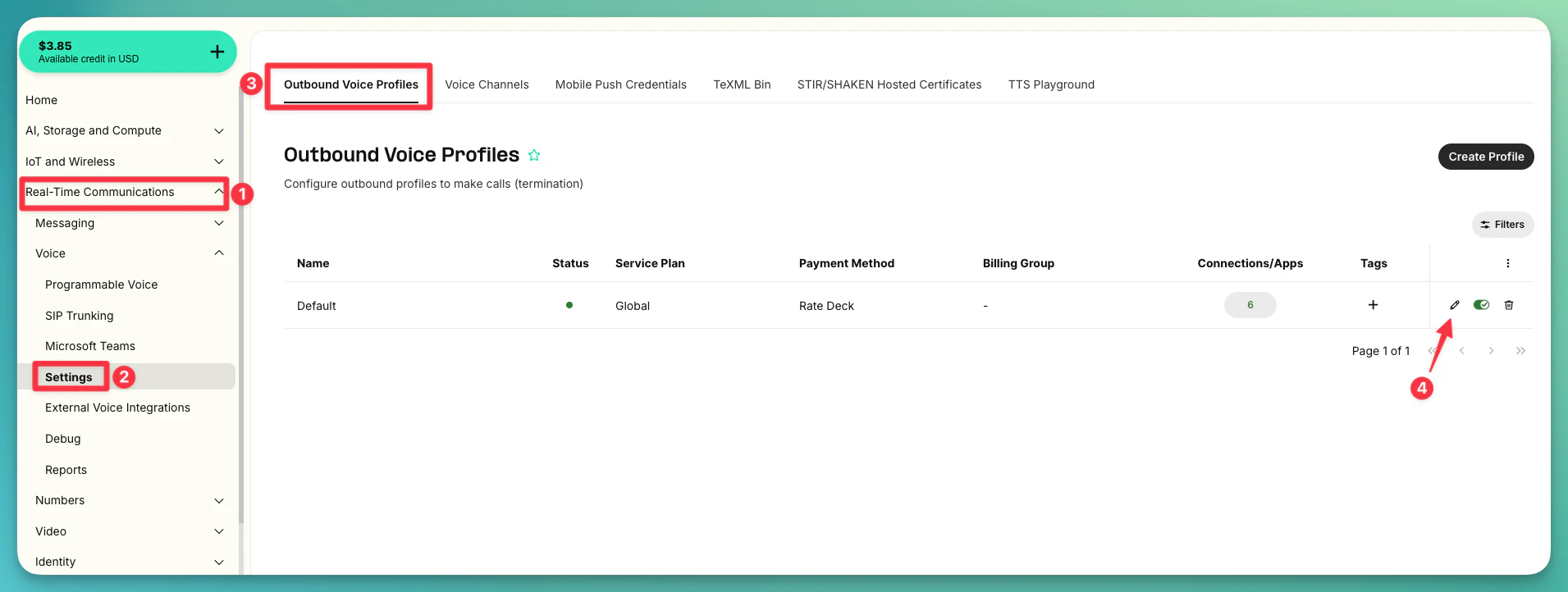
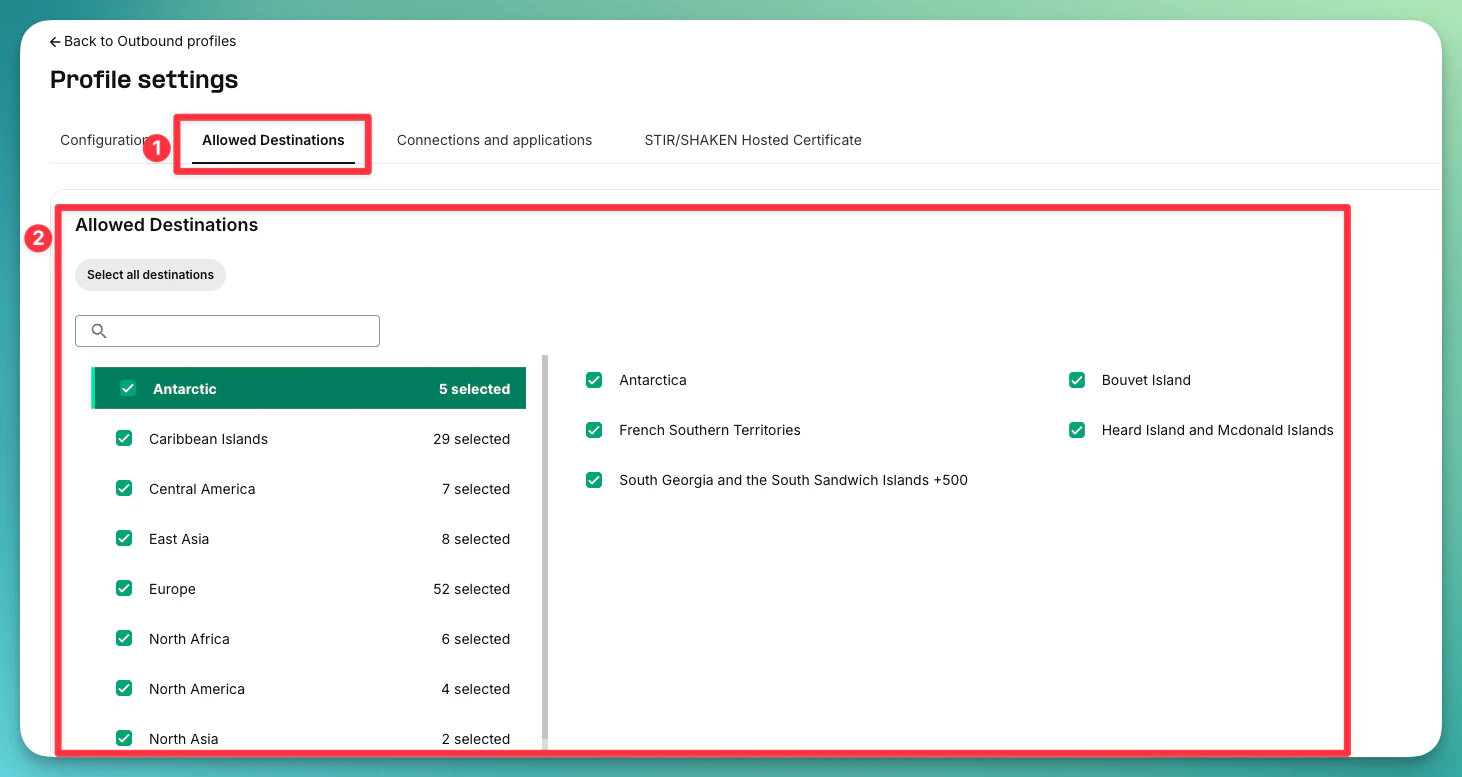
If you don’t have an Outbound Voice Profile, go to Voice → Settings → Outbound Voice Profiles → Create Profile. Make sure to enable the countries you want to call under Allowed Destinations.
Step 5: Assign Numbers
The last step of the wizard is the Numbers page:- Click Assign numbers
- Select the phone number(s) you want to use
Step 6: Enable Geographic Permissions
- Go to Voice → Settings → Outbound Voice Profiles
-
Click on edit
- Click on your profile → Allowed Destinations
-
Enable the countries/regions you need to call
Step 7: Import Number to the Platform
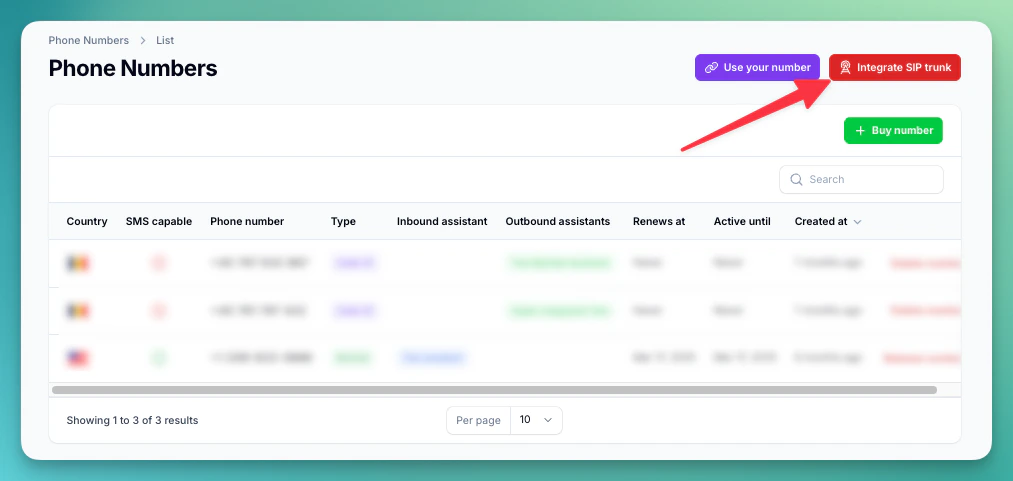
- Go directly to the Phone Numbers page in your dashboard: https://app.autocalls.ai/phone-numbers If it takes you to the login page, log in first — it will automatically redirect you to the Phone Numbers page.
-
Click “Integrate SIP trunk” (top-right corner of the page)
-
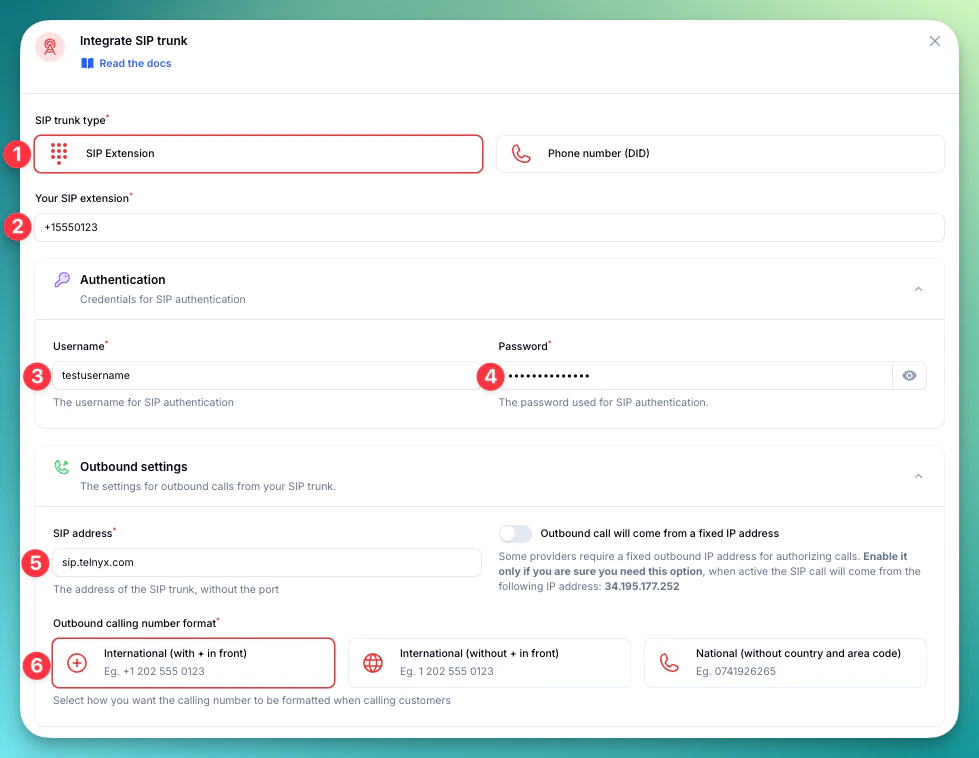
Fill in your phone number and SIP credentials:
-
Enter the outbound settings:
-
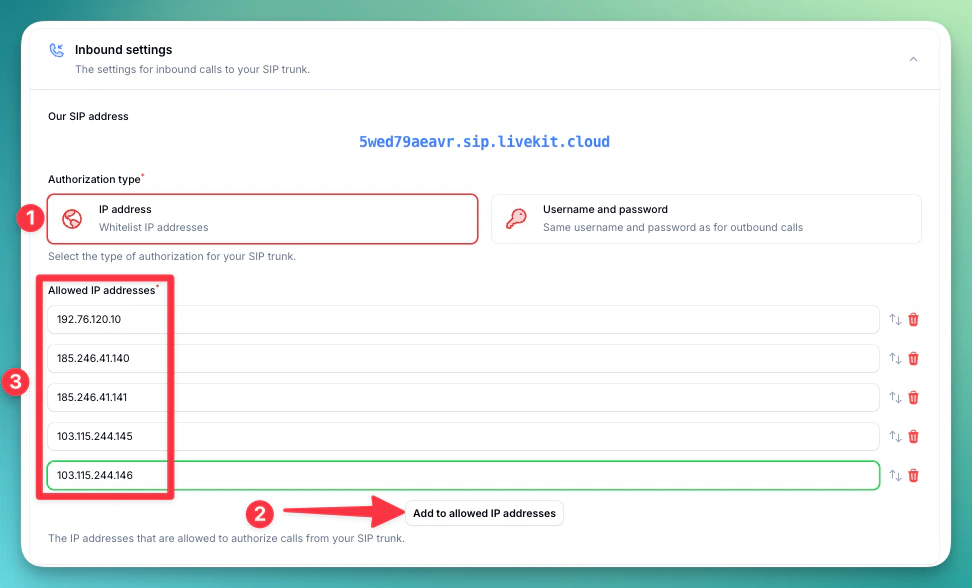
Select Authorization type: IP Address and add the Telnyx IP addresses for your region:
- US:
192.76.120.10 - Europe:
185.246.41.140and185.246.41.141 - Australia:
103.115.244.145and103.115.244.146
- US:
You can add all IP addresses regardless of region — only the relevant ones will be used.
-
Select the country where your SIP trunk is located.

Step 8: Verify Setup
To test your Telnyx number, you need to assign it to AI assistants. Inbound and outbound require separate assistants:Test Inbound
- Go to AI Assistants → create a new assistant (or use an existing one)
- In General → Direction & identity, set Calls direction to Receive phone calls
- Assign your Telnyx phone number to the assistant
- Call your Telnyx number from any phone — the AI assistant should answer
Test Outbound
- Create a second assistant with type Make phone calls
- Assign the same Telnyx phone number to this assistant
- Click Test assistant, type your own number and click Call me now — the platform will call your personal phone using the Telnyx number
Security Requirements
Your SIP credentials need to be secure:- Username: Your provider-supplied username
- Password must have:
- 12 or more characters
- Numbers
- Upper and lowercase letters
- Special characters recommended
Common Issues
Dialed number is not included in whitelisted countries
Dialed number is not included in whitelisted countries
Go to Voice → Settings → Outbound Voice Profiles → your profile → Allowed Destinations and enable the destination country you’re trying to call.
Inbound calls not working or 'number is incorrect'
Inbound calls not working or 'number is incorrect'
- Make sure the connection type is FQDN (not Credentials or IP Address)
- Verify the FQDN is set to
5wed79aeavr.sip.livekit.cloudon port5060 - Check that the phone number is assigned to the FQDN connection (not another connection)
Outbound calls not connecting
Outbound calls not connecting
- Verify the SIP address is
sip.telnyx.com(not your SIP subdomain) - Check that credentials match between Telnyx and the platform
- Make sure an Outbound Voice Profile is attached to the connection
- Verify the Localization country is set correctly
Why can't I use Credentials connection type?
Why can't I use Credentials connection type?
Credential connections require SIP REGISTER for inbound calls. Our platform uses direct SIP routing (no registration), so FQDN connection type is required. FQDN still supports credential-based authentication for outbound calls.
Need help setting up? Our support team specializes in helping customers
integrate their phone systems. We’ll guide you through the entire process,
ensuring a smooth setup with your specific phone system configuration.