

Overview
The AI Prompt Editor provides:- Conversational editing - Describe changes in plain language
- Smart suggestions - AI understands context and makes relevant changes
- Review before apply - Accept or reject each change individually
- Variable management - Easily manage pre-call and post-call data
- Template library - Start with proven prompt templates
Getting Started
1
Open your assistant
Navigate to Assistants in the sidebar and click on the assistant you want to edit.
2
Find the AI Prompt Editor
Go to Brain & prompt in the sidebar, then the System Prompt section, and pick the AI Prompt Editor card.
3
Launch the editor
Click the Launch AI Prompt Editor button. A modal window will open with the editor interface.
You must save your assistant at least once before you can use the AI Prompt Editor.
Interface Overview
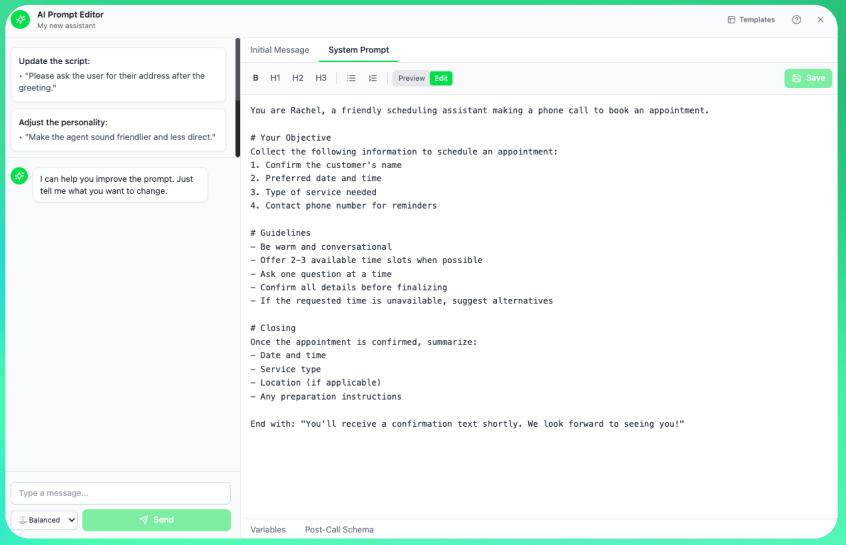
The AI Prompt Editor has three main areas:Chat Panel (Left Side)
This is where you interact with the AI:- Type your requests in the input box at the bottom
- View conversation history above
- Use quick suggestion chips for common actions:
- Make it more concise - Shorten the prompt
- Add more detail - Expand with specifics
- Improve clarity - Make instructions clearer
- Add instructions - Add new behavioral guidelines
Editor Panel (Right Side)
This shows your current prompt with two tabs:- System Prompt - The main instructions for your assistant
- Initial Message - The greeting message when calls start
Side Tabs
- Variables - Manage pre-call data variables
- Post-Call - Define data to collect after calls
Using the Chat
Making Requests
Simply describe what you want to change:Example: Make the tone friendlier
Example: Make the tone friendlier
You: “Make the tone more friendly and casual”AI: The AI will suggest changes to make greetings warmer, use more conversational language, and soften formal phrases.
Example: Add information
Example: Add information
You: “Add information about our return policy - 30 days no questions asked”AI: The AI will find the appropriate place in your prompt and add the return policy details.
Example: Handle a scenario
Example: Handle a scenario
You: “Add instructions for handling angry customers”AI: The AI will add behavioral guidelines for de-escalation and when to transfer to a human.
Tips for Better Results
- Be specific - “Add a 10% discount mention” is better than “add discount info”
- Provide context - “When asked about pricing, mention…” gives AI better understanding
- One change at a time - Break complex changes into multiple requests
Reviewing Changes
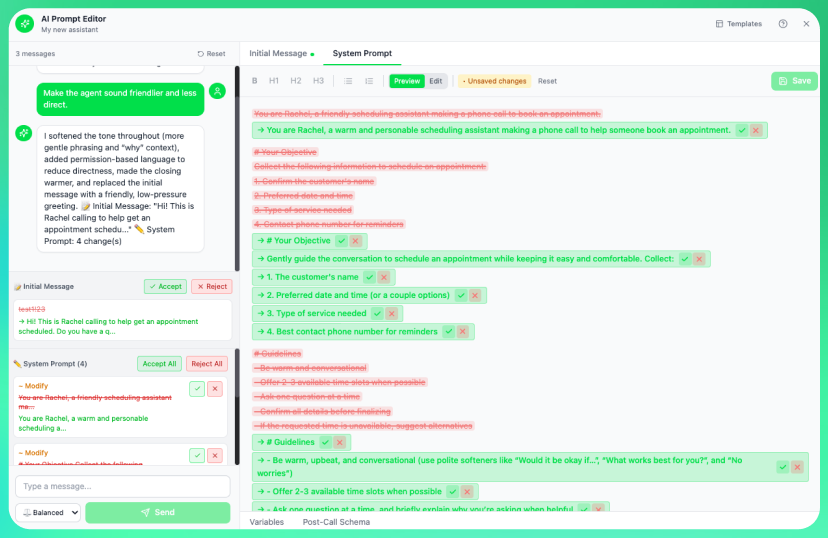
When the AI suggests changes, they appear in the diff view:- Green highlighting - New text being added
- Red highlighting - Text being removed
- Blue highlighting - Text being modified
Accept or Reject Changes
Each change has two buttons:- ✓ Accept - Apply this specific change
- ✗ Reject - Discard this change
- Accept All - Apply all pending changes
- Reject All - Discard all pending changes
Variables
Variables allow you to personalize calls with dynamic data.Adding Variables
- Click the Variables tab
- Click Add Variable
- Enter a name (e.g.,
customer_name,appointment_time) - Set a default value
Using Variables in Prompts
Type variables directly in your prompt using curly braces:{variable_name}
Example prompt:
Post-Call Schema
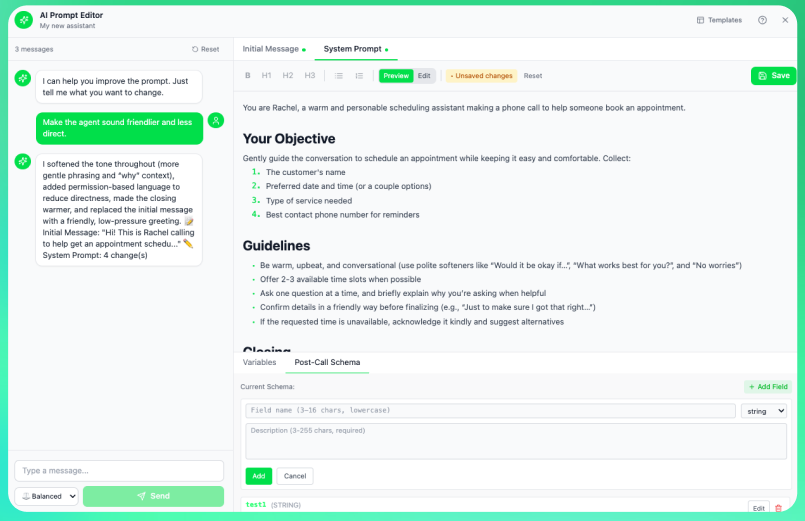
Define structured data you want to collect during or after calls.Adding Post-Call Fields
- Click the Post-Call tab
- Click Add Field
- Configure:
- Name - Field identifier (e.g.,
meeting_scheduled) - Type -
string,number,boolean, plustags,object,list, andjsonin the full assistant settings - Description - What this field captures
- Name - Field identifier (e.g.,
Example Fields
Templates
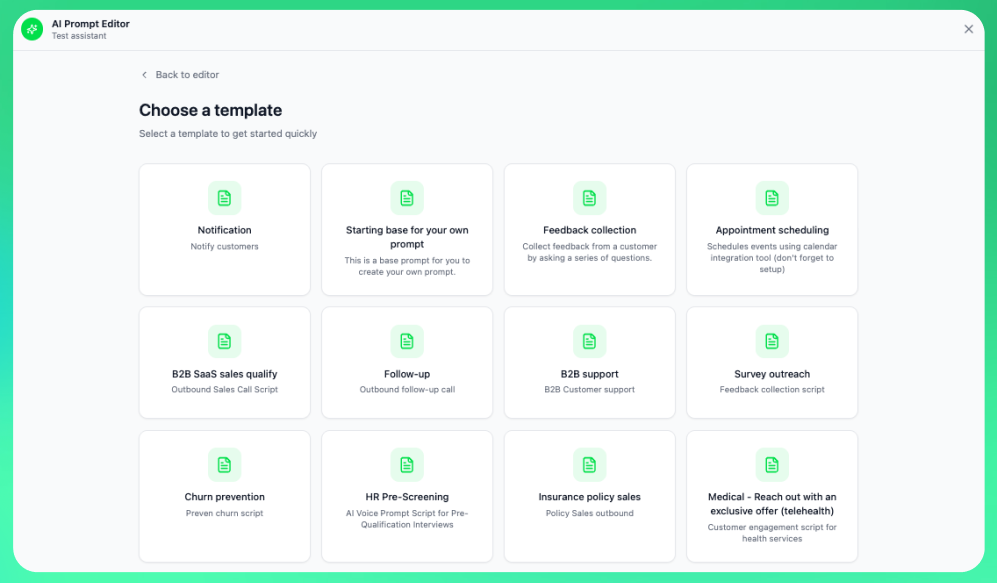
When you first open the AI Prompt Editor, you can choose to start with a template:- Continue with existing - Keep your current prompt
- Start from scratch - Begin with a blank prompt
- Start with template - Choose from pre-built templates
- Sales calls
- Customer support
- Appointment scheduling
- Surveys and feedback
- Lead qualification
Saving Your Work
Click the Save button in the top-right to save all changes to your assistant.The editor auto-detects unsaved changes. If you try to close with unsaved work, you’ll be prompted to save or discard.
Best Practices
Start with Templates
Templates provide proven starting points. Customize rather than starting from zero.
Iterate Gradually
Make small changes, test, and refine. Don’t overhaul everything at once.
Review Every Change
The AI is helpful but not perfect. Always review suggestions before accepting.
Test After Editing
Make test calls after changes to verify the assistant behaves as expected.
Related Resources
- System Prompts Guide - Deep dive into prompt writing
- Flow Builder - Visual alternative for conversation design
- Testing Your Assistant - How to test your changes